
Admin Features Reference
Last Updated: 2026-10-16 | For: Administrators, Teachers, Content Owners | Level: Advanced
Start Here
- Deploy or verify production: Remote Install
- Confirm runtime configuration: Settings.json Reference
Administrator API keys
The administrator key controls report whether a stored OpenRouter, Google text-to-speech, or Google speech-recognition key can be decrypted for use. If decryption fails, the interface asks for a replacement. Enter the replacement through the existing provider key control. An encrypted value being present does not establish that the provider can be used; dashboard audio indicators also take key usability into account. This status does not independently verify provider acceptance or remaining credit.
AI Content Prompt Lab
Open the AI Content Prompt Lab in Admin Tests to inspect the same pipeline used by the content creator. It uses the administrator's selected model and exposes stage instructions, reasoning, output budget, schema, request traces, source decisions, unresolved items, and review. Runs make real provider requests. Stage retry reuses validated upstream results and rebuilds downstream results; named checkpoints and drafts remain in the current browser. A trace or checkpoint does not publish a lesson. See Quick Start: Content Creation for the author-facing workflow.
Lab edits affect the current browser's draft. Creator uses the defaults stored in code. Reset to code defaults retains author notes and first saves the current draft as a checkpoint. Editing a stage invalidates the displayed run, so rerun it before interpreting results under the changed settings.
SPARC live evaluation
Improve prompt caching in User Admin controls whether SPARC provider requests include a random session identifier for cache locality. It defaults to off and changes apply to subsequent requests. Provider-reported cache usage and cost describe returned usage; enabling the option does not guarantee a cache hit or lower total cost. Provider caching can also occur while it is off.
Admin Tests includes a live compound-interest dialogue evaluation. Select an available uploaded lesson/page, run the evaluation, and inspect graduation and robustness results. This diagnostic makes real OpenRouter requests through the administrator test service. Its results apply to the selected source and scripted cases; they do not certify every lesson or learner outcome.
Admin Tests uses the administrator's OpenRouter key, model, and reasoning configuration. It does not switch to the signed-in administrator's personal Profile key when the administrator configuration is missing. Correct the administrator settings before rerunning a failed configuration check.
The strict-schema preflight checks a small provider request before a larger evaluation. Read failure details and any not-run or evaluation-error rows: these are separate from a completed student simulation that fails to graduate. The preflight checks the configured request path at that time, rather than certifying future requests.
Download SPARC live log exports the latest result retained in that browser's local storage. Keep the source lesson/page and run details with the result when comparing evaluations.
Shared instructional content library
At the top of Content, select Inspect instructional content library to browse the single shared repository at /sparcImageLibrary. It contains images, explanations, feedback, support, and questions from across lessons. These controls are administrator-only.
Deployment does not automatically move shared library content between servers. The separate fresh-library seed tool and operator guide prepare a checksummed content/media bundle and seed an empty destination library only when explicitly applied. Learner records and credentials are excluded.
The library opens in Topics, with a representative thumbnail, semantic label, component count, and subgroup count per topic. Click a topic to see its subgroups, then click a subgroup to see its component thumbnails. A compact header uses the selected theme's normal text color for readability against the page background. On phones, the breadcrumb wraps below the library title; long paths wrap without horizontal scrolling. Topic and subgroup captions sit directly below their thumbnails, using the same spacing as individual components. Breadcrumb text links return to the parent topic or the Topics overview; counts appear only on topic and subgroup cards, without repeated headings or introductory instructions. Inside a subgroup, thumbnails sort by type—Explanation, Feedback, Image, Question, Support, Video passage—then from closest to that subgroup's center outward within each type. This ordering stays consistent across Show more components pages. The label below each thumbnail identifies its component type; it does not show the KLI category. Video passages show YouTube poster thumbnails; opening a passage uses its saved start/end interval.
Click a thumbnail to inspect it above the grid; the selected thumbnail is highlighted. Text inspection displays rendered Markdown and saved answer choices. Revise updates the current item in place. There are no parent links or retained older revisions. Question revisions include the question text, answer options, and correct-answer markers. Delete permanently removes the component. Existing excluded items are deleted by the startup migration. Learner history and student-model values remain unchanged; reloading deleted content shows Administrative removal in its original field without a lesson error. Deletion receipts retain IDs only, not a content archive.
Image inspection retains the saved description, creation date and generator model. Click the inspected image to open its full-size view in a new browser tab, where normal browser zoom is available. Full-size viewing follows the existing authorization and security policy; see the image-access contract. Delete removes the image, its saved assets and support entries that depend on it. Video deletion likewise removes dependent support. Revise image accepts an administrator's PNG, JPEG, or WebP file of at most 8 MB; review its preview and description before Save revision. Use a replacement that serves the same instructional need. Replacement keeps one current catalog entry. No earlier image copies are retained.
Bulk uploaded-file deletion follows the same removal contract for SPARC teaching images, including generated images without a library entry. It preserves learner decisions, history and model values, records administrative removal, and removes dependent content before image files. Unrelated standalone text and video library entries remain outside the bulk uploaded-file operation.
The library follows the selected theme's fonts, text size, spacing, card surfaces, corner radii, and controls. Images and text can belong to the same semantic group. Topic and subgroup counts are selected automatically using the same clustering method at both levels. The hierarchy stops after two levels. Singleton topics are allowed; a topic with no supported split has one subgroup. Additions and deletions invalidate grouping; deletion removes the content from future retrieval. Topic and subgroup labels use the model and key configured in the Admin Control Panel, so rebuilding labels makes provider requests while subsequent visits use the saved grouping.
Retrieval uses the same canonical instructional-need encoding for saving and lookup, with embedding similarity deciding meaning and component type plus question response format restricting candidates. Question repetition compares embeddings of question text with earlier question text. There is no exact-context or calibration gate. See the SPARC instructional specification for the shared representation, operating cutoffs, resume behavior, and dated verification evidence.
Deployment readiness
Before deployment, run Deployment Readiness in Admin Tests and require tdf.expressions to pass. The result identifies invalid authored expressions by TDF ID and field path, with bounded counts and an omitted-failure count when needed. Correct the authored field and rerun the check; the result does not expose formula text or learner records. See Learning Algorithms for the supported expression language.
Recoverable system warnings
Persisted citation warnings contain counts and a lesson reference. The admin-controlled browser logger at verbosity level 1 contains structural citation summaries, without quotations, learner answers or dialogue excerpts. Speech-recognition diagnostics also omit transcripts and answer grammar while retaining counts, timings and acceptance outcomes. Level 0 remains silent. Learner content needed for scoring and saved progress retains its existing storage and access rules.
Open Admin Tests → Recoverable system warnings to inspect minor recoverable events reported by the application. The log shows the newest 50 records; use Older warnings for earlier pages and Refresh to return to the newest records. Only administrators can read it.
sparc.staleQuestion records rejected outdated choice submissions. Its structured
details include submitted/current/displayed question IDs, the clicked node, cycle
IDs, stale-state flags, transition count, and the button's presence/disabled/selected
state before submission becomes pending. These records omit learner answers and
instructional text. Reporter identity and collection time are assigned by the server;
the state itself is client-reported. Reporting does not change saved progress or the
original rejection.
AutoTutor citation mismatches (wrong conversation references or quotation text) are recorded here while the learner continues with the AI's unchanged score. Each event includes its time, lesson reference when available, and mismatch count. Student answers and quotations are not copied into this log. Events are client-reported diagnostics, not independently verified scoring findings. Diagnostic delivery is best effort and cannot stop the learner's session.
The log begins collecting after the updated application is deployed; it does not reconstruct earlier events.
Overview
This page provides a comprehensive reference for all administrative and teaching features available in MoFaCTS once the application is installed and running.
Management tools show progress, validation errors, save results, and confirmations within the page. Read the status beside the operation before repeating it. A successful file download starting, a package finishing upload, and a lesson being ready for learners are separate outcomes. Destructive actions require the confirmation offered by the tool.
Quick Navigation: Use the function table below to jump to specific features, or browse the sidebar for other documentation.
| Roles | Function | Description |
|---|---|---|
| All | User Roles & Permissions | Understanding MoFaCTS role system and permissions. |
| All | Lessons | All roles can practice with TDFs. |
| All authenticated users | Content Upload | Users can access lessons they own or that were explicitly shared with them. |
| All authenticated users | Data Download | Users can download all learner data for TDFs they own. |
| Admin | User Admin | Manage accounts and deployment provider settings. |
| Admin, Teacher | Class Edit | Admins and Teachers can edit classes. |
| Admin, Teacher | TDF Assignment Edit | Admins and Teachers can edit TDF assignments. |
| Admin, Teacher | Instructor Reporting | Admins and Teachers can access instructor reports. |
| Admin | Admin Controls | Admins have access to additional administrative controls. |
| Authenticated authors | Content Generation | Create and review lesson packages. |
User Roles & Permissions
Overview
MoFaCTS uses the alanning:roles package to implement role-based access control. See the official documentation for technical details.
Role Assignment
On server startup, MoFaCTS reads configured role assignments through mofacts/server/startup/serverStartup.ts. The system adds any usernames (or email addresses) found in the configuration arrays to the corresponding roles.
Important notes:
- Role assignment logic will NOT remove users from roles on startup - only add them
- Server-side methods handle actual security enforcement
- Client-side role checks are for UI convenience only (not security)
- See
mofacts/server/methods/for server-side security implementation details
Available Roles
Common account roles are admin, teacher and student. Roles and content ownership serve different purposes:
- Administrators manage accounts, deployment provider settings, branding and system controls. Administrator role does not bypass lesson ownership in Data Download.
- Teachers create classes, assign uploaded lessons and use Instructor Reporting. Detailed trial exports require ownership of the lesson.
- Students launch their available lessons and view personal progress. Ordinary authenticated accounts can also create or upload their own content, subject to the site's quota and authoring requirements.
Owned, shared, public and valid class-assigned lessons contribute to learner visibility. Shared access allows the specified content workflow; it does not transfer ownership or grant another learner's history export.
See the function table above for detailed role-based feature access.
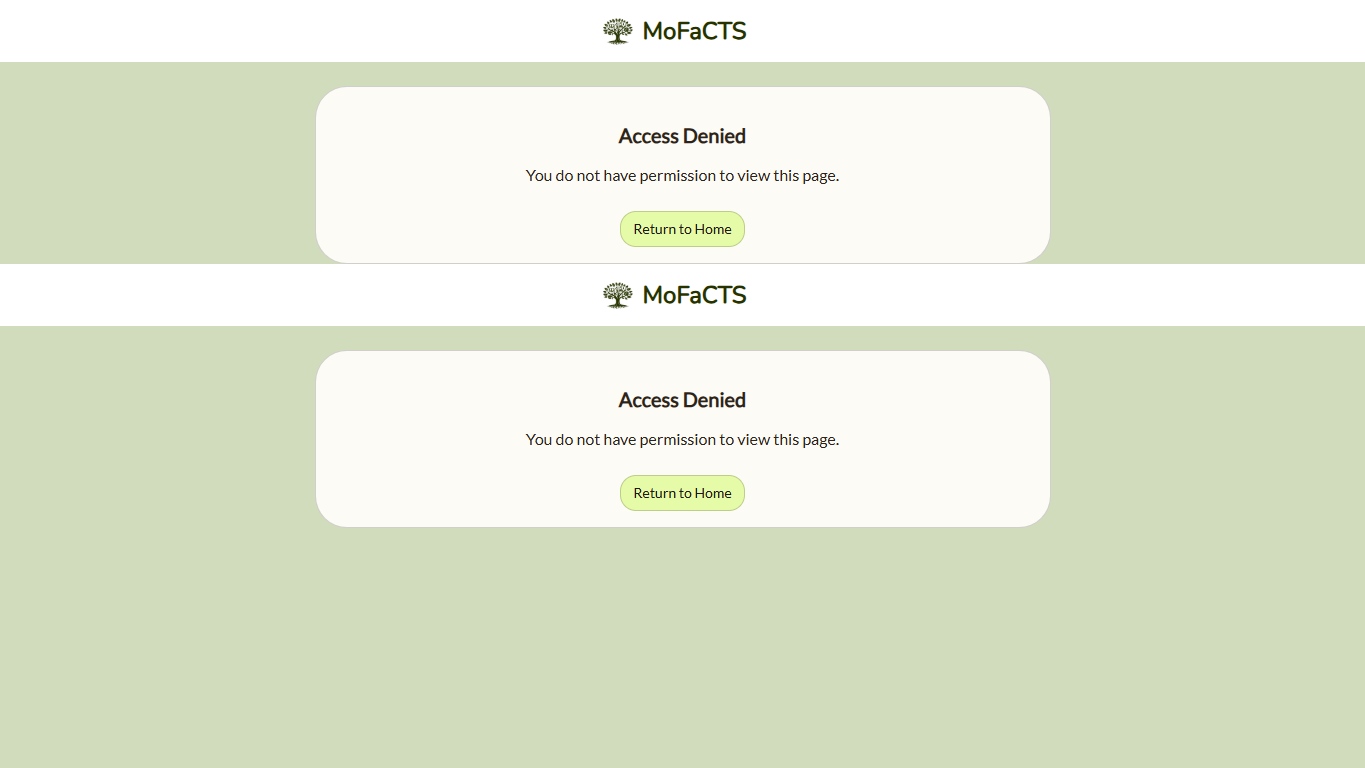
Users who try to open a role-restricted page without the required role see an access-denied page instead of the protected tool:
Lessons
Lessons are a key component of the MoFaCTS system.
Overview
Lessons provide the list of learning materials a user can practice with. The learner dashboard now follows one visibility rule for every authenticated user:
- lessons the current user owns
- lessons marked public with
content.tdfs.tutor.setspec.userselect = "true" - lessons explicitly shared with the current user through content accessors
- class-assigned lessons for a valid enrolled class/course assignment
Class assignment adds to the visible set; it does not replace owned/shared/public lessons. From that dashboard a user can:
- Select a lesson to practice with.
- Enable or disable audio output for the selected lesson.
- Enable or disable speech input for the selected lesson.
- Tag search for lessons by tag. The tags available depend on the lessons that have been uploaded to the system.
Unit Structure of Learning
Lessons are organized into units. These units include:
- Instructions: These provide guidance on how to navigate and interact with the lesson.
- Learning Sessions: These are the main content of the module where users engage with the learning material.
- Assessment Sessions: Fixed authored question schedules.
- Video Sessions: Video playback with scheduled questions or worksheet checkpoints.
- AutoTutor Sessions: Conversational tutoring from an authored curriculum script.
- SPARC Sessions: Interactive instructional documents, including production-rule tutoring.
- Gaze calibration: A dedicated local visual-prototype calibration unit.
Prompt and task formats
Each unit in a lesson can contain different types of trials or tasks. These include:
- Multiple Choice: Users are presented with a question and multiple answer options, and they must select the correct one.
- Cloze: Users are presented with a sentence with a missing word or phrase, and they must fill in the blank.
- Image: Users are presented with an image and asked a question about it.
- Sound: Users are presented with a sound or piece of audio and asked a question about it.
- Short Answer: Users are asked a question and must provide a short written answer.
Lessons also include several functions for admins:
- Impersonation Mode: If the user is an admin, they can enable impersonation mode. In this mode, nothing will be logged and the user can simulate the experience of other users.
- Show Lesson Admin Info: If the user is an admin, they can enable this feature to view additional information about lessons, such as practice counts and average scores.
- Disable selected TDFs: Allows administrative deactivation of tdfs that have been shared with others (for admin use).
Content Upload
Content Upload is a content-access workspace, not a role-override workspace.
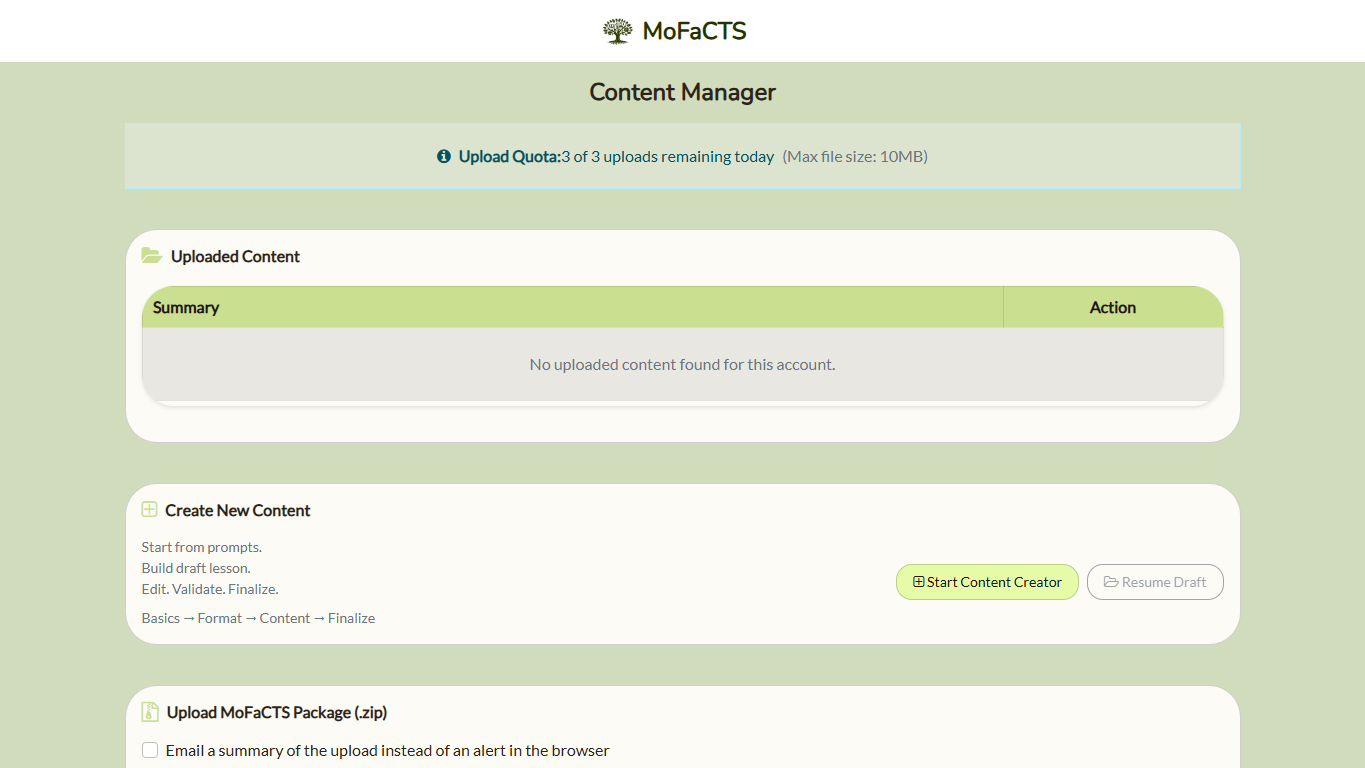
- Any authenticated user can open Content Upload.
- The list shows lessons the current user owns and lessons explicitly shared with the current user through content accessors.
- Admins do not bypass this rule.
- Public learner access alone does not make a lesson appear here.
Main functions:
- Assets / lesson list: Shows root TDFs the current user owns or that were explicitly shared with the current user. Root TDFs control multiple randomized conditions called sub-TDFs. Content Upload displays the root TDF and summarizes its condition branches.
- Upload Package: Select or drag one or more packaged zip files containing TDFs, stimulus files, and optional assets. Multiple packages are queued and processed one at a time. Uploaded content is owned by the current user account. MoFaCTS automatically assigns stable TDF IDs: ID-less packages create new lessons regardless of filename, while an ID-bearing package requires one package-level confirmation before updating content the uploader can manage. Current-package downloads include these IDs automatically. The content list hides generated TDF record IDs; this does not remove package identity or condition references. Authored SPARC page, node, and rule identifiers remain editable because content can reference them.
- Public toggle: Public learner visibility is controlled by
content.tdfs.tutor.setspec.userselect. When this value is"true", the lesson appears on learner dashboards for authenticated users. - Accessor management: Owners can explicitly share content without transferring ownership. Shared users can access that content in Content Upload, but ownership controls remain owner-only.
Data Download
Data Download is owner-scoped export, not role-scoped reporting.
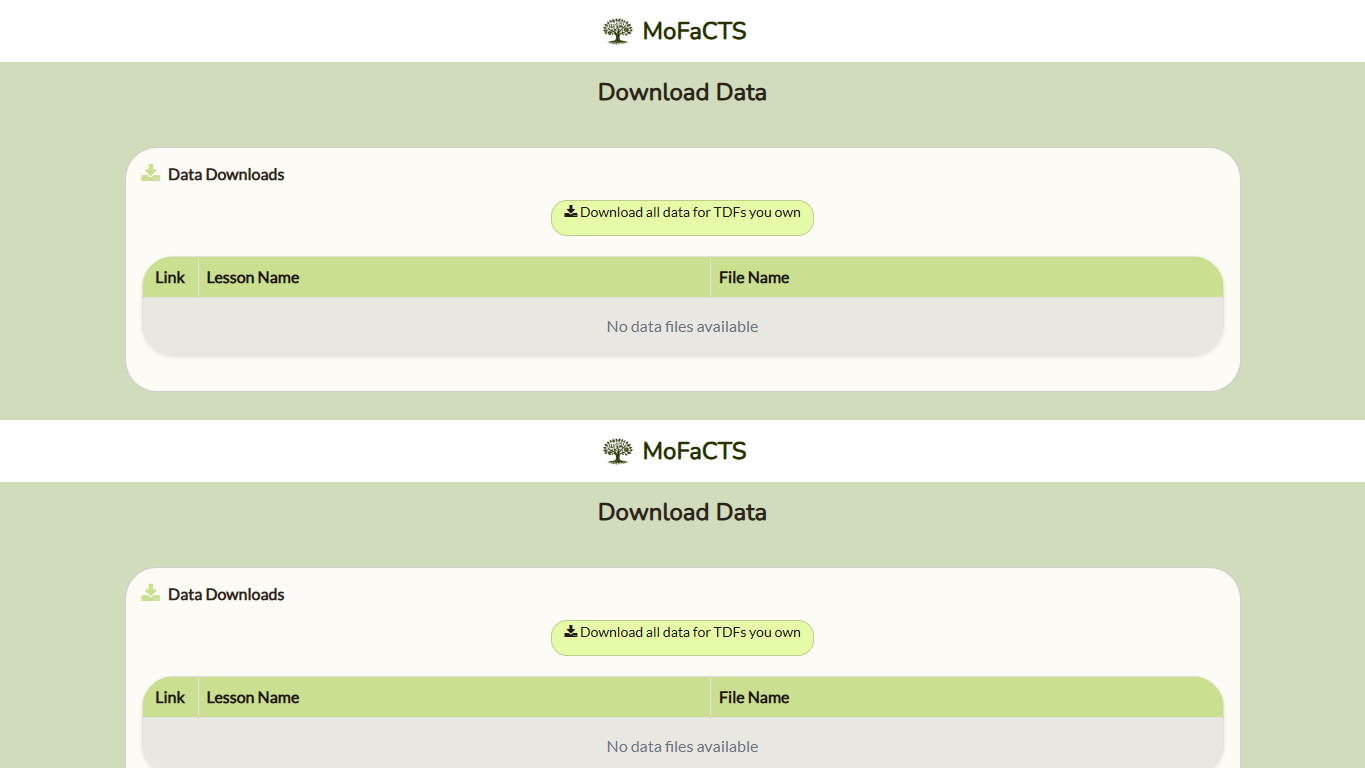
- The page is available to any authenticated user.
- The list only shows TDFs owned by the current user.
- Exports include all learner data collected for those owned TDFs.
- Admins do not bypass ownership rules here.
- Shared/accessor access is not enough to export another owner's TDF data from this flow.
Current page behavior:
- Download all owned TDF data: Export all learner data for every TDF owned by the current user.
- Download specific TDF data: Export all learner data for one selected owned TDF.
- Condition-root export scope: Root-based export includes the selected owned root plus any owned condition children resolved from that root.
- No teacher/class scope selector: This flow no longer supports selecting another teacher or a class for export.
Owned-lesson downloads prepare and stream the TSV through a short-lived, single-use download link. The selected scope is checked again before the download starts. If lesson ownership or condition membership changes while the file is being prepared, request a new download. The columns and student/time ordering remain the same; the server processes history in bounded batches rather than assembling the whole file in memory.
User Admin
User Admin is an administrator-only page. It includes deployment provider settings, a paginated account list and batch account import.
- User list: Filter accounts and use the page controls. Loading and error states distinguish an unfinished request from an empty result.
- Role controls: Administrators can add or remove admin and teacher roles using the row controls; inspect the save result before repeating the change.
- Delete: Review the account identifier and inline confirmation before deleting an account. This is an account-management action, not a way to reset lesson progress.
- Import user file: Select the prepared roster file, choose the batch import action, and review the returned status.
- Provider settings: Set the deployment OpenRouter model/reasoning and provider keys through the controls described under Administrator API keys.
The current page does not provide the historical teacher-secret reset or impersonation controls. Teachers use the class and assignment tools for their teaching workflow.
Class Edit
The Class Edit Menu functionality is a part of MoFaCTS, specifically designed for users with 'admin' or 'teacher' roles. It provides these users with the ability to manage class-related information within the system. The Class Edit Menu functionality provides the following features:
Class Selection: Teachers and admins can select a class from a dropdown menu. If a class is selected, its details are loaded into the form for editing. If no class is selected, the form is cleared for the creation of a new class.
Class Creation and Editing: Teachers and admins can create a new class or edit an existing class. The form includes fields for the class name and sections. The class name cannot be blank. Section names are entered as a list, with one section name per line. Blank section names are not allowed.
Class Saving: Teachers and admins can save the changes they have made to a class. If a new class is being created, it is added to the system. If an existing class is being edited, its details are updated in the system. After a class is saved, a message is displayed to confirm that the class was saved successfully.
Class Sections Update: The system maintains a list of all class sections associated with the current user. This list is updated whenever a class is saved.
This functionality is designed to make the management of classes and sections straightforward and efficient for teachers and administrators.
TDF Assignment Edit
The TDF Assignment Edit functionality is a part of MoFaCTS, specifically designed for users with 'admin' or 'teacher' roles. It provides these users with the ability to manage Tutor Definition File (TDF) assignments within the system. The TDF Assignment Edit functionality provides the following features:
Class Selection: Teachers and admins can select a class from a dropdown menu. The TDF assignments for the selected class are loaded for editing.
TDF Assignment Editing: Teachers and admins can edit the TDF assignments for the selected class. They can select TDFs to be assigned to the class from a list of all available TDFs. They can also unselect TDFs that are currently assigned to the class.
TDF Assignment Saving: Teachers and admins can save the changes they have made to the TDF assignments for the class. The updated TDF assignments are saved to the system.
Instructor Reporting
The Instructor Reporting function provides a detailed report of student performance for instructors:
Class Selection: If the user is an admin or a teacher, they can select a class from a dropdown menu. Once a class is selected, a report is generated for the selected class.
Select Chapter: If a class is selected, the user can select a chapter from a dropdown menu. Once a chapter is selected, a report is generated for the selected chapter.
Practice Deadline: If a chapter is selected, the user can set a practice deadline. The report will then be generated based on this deadline.
Filter By Due Date: If a chapter has a due date set, the user can enable a filter to separate the report into two sections: one for students who completed before the due date and one for students who completed after the due date. The user can also set an exception date.
Class Data: This section displays a table of student performance data. For each student, the table shows the student's username, percent correct, count, total time in minutes, and any exceptions. The user can also add or remove exceptions for each student.
Admin Controls
The Admin Control Panel is available to users with the admin role. It provides server status information, a display-cache maintenance action, and persisted logging controls.
- Server Status: Shows server storage utilization.
- Server Logging: Controls MoFaCTS
serverConsoleoutput across server processes.- Off: Suppresses
serverConsoleoutput. - Routine Server Logs: Shows normal operational diagnostics. This is the default.
- Detailed Server Logs: Includes routine diagnostics and level-2 trace messages.
- Off: Suppresses
- Browser Console Logging: Controls MoFaCTS
clientConsoleoutput in authenticated browsers.- Off: Suppresses
clientConsoleoutput. - Important Diagnostics: Shows level-1 diagnostics.
- Detailed Trace: Shows level-1 and level-2 diagnostics.
- Off: Suppresses
- Display Cache Maintenance: Rebuilds the stimulus display-type cache.
Logging selections are saved immediately. While a save is pending, that radio group is disabled and displays inline status. A successful save displays confirmation; a failed save restores the previous selection and displays the error.
Deployment branding
Use Theme → Branding and Landing Page to edit the deployment Brand Profile: product and organization identity, icons, public sections and demos, translated copy, and legal/support destinations. Visual themes control appearance independently. Save or import a draft, inspect the preview and incomplete-language list, then choose Publish Brand Profile. Publication requires all ten supported interface languages and the required identity, icon, layout and legal fields. Public surfaces read only the published profile. JSON import/export supports reuse across installations; importing does not publish.
Backup archives
Administrators use the backup tool to inspect archive jobs and their available actions. A failed job can still have an archive file. Delete is available for complete, verified, or failed backup jobs with an archive filename; type DELETE and choose Confirm. Deletion removes the archive while preserving its registry history. Failed status does not establish that an archive is restorable: restore is offered only for complete or verified backup jobs. Review the manifest and verification result before treating an archive as a recovery source.
Restore validates dashboard history positions before replacing database collections. It preserves learner history and personal lesson settings, reconciles committed history counters, and clears derived dashboard totals and processed positions so the next dashboard entry reconstructs them from the restored data. Normal later visits process only new activity. Invalid or duplicate committed history sequences fail restore preparation; they are not silently renumbered.
Content Generation
Use the AI Content Creator to turn source material into lesson content, review the generated items, and download or upload the completed package. The creator provides four source strategies and retains drafts in the current browser. See Quick Start: Content Creation for the complete workflow, source mapping, review and upload steps. Administrator diagnostics are described in the AI Content Prompt Lab.
Prolific researcher panel
Test setup
Use Add test participant to create a Prolific test account with an unused email address. The tester sets a password through Prolific's password-reset flow. Prolific must enable testing for the workspace; MoFaCTS cannot enable it. Test account receipts do not create learner answers or participation records.
Select an existing Prolific draft and a separately uploaded unused MoFaCTS experiment, then choose Prepare test-study setup. Review the workspace, experiment, launch URL and completion code; select the code if several are available. Create test study from draft configures the external URL, creates the Prolific test study and binds its returned identity and completion URL automatically. An unconfigured experiment can be selected without first editing its TDF. Existing study use, history, progress or assignments prevent automatic configuration.
Test setup history shows ready links and incomplete operations. Continue a known created study to finish its local setup without creating another study. An uncertain creation is never automatically repeated; investigate on Prolific. Definitive failures can be retried explicitly; a fresh review can replace an unsent or definitively failed setup. Uncertain reservations remain in place. This is separate from real recruitment and does not automatically approve, pay bonuses or message participants. The real launch-to-completion workflow and Prolific's study placeholder expansion require deployment verification.
Existing study management
Administrators open Prolific under Admin in the sidebar or alongside administrator controls in the compact menu. Its official Prolific symbol uses the same theme color, sizing, hover and selected state as the other administrator icons. It remains visible when the sidebar is collapsed, with a hover label. Teachers retain direct access at /prolific. Each researcher connects their own API token, selects a workspace/project and existing study, and links it to their own MoFaCTS experiment with reminder text. Tokens are encrypted server-side using the deployment's existing encryption key and are never published. The study ID and root prolificCompletionUrl must already be configured in the experiment. Linked identities cannot be reassigned to another account or lesson.
The panel provides study/participant progress, individual or selected-group approvals, manually entered bonuses with currency and fee/tax previews, individual or selected-group messages, and lockout-expiry reminders. Live-study creation/publishing, rejection, local participant removal, and longitudinal wave management stay outside MoFaCTS. These are new participation records; no old accounts, credentials, histories, or Turk messages are migrated.
The initial Prolific submission is completed after the first saved session, not after all return visits. A session ends at a positive lockout after completed work, or at the end of the entire assigned lesson. Later visits use the private return links included in Prolific reminder messages and researcher-entered bonuses. Return links do not bypass lockouts. Ordinary experiment participants retain their existing entry and navigation.
Confirm each approval, message batch, or bonus preview explicitly. Bonus accepted means Prolific accepted the request, not that payment settled. Prolific's bonus payment endpoint is not idempotent; MoFaCTS durably claims each operation before sending and never repeats a claimed request. review-required indicates an uncertain result and blocks conflicting operations. Verify the result on Prolific and record an external review before deciding whether to prepare another operation. A recorded review is the researcher's assertion, not a provider receipt. Submitted operations retain their per-recipient outcomes for partial batches.
Reminders are queued once per saved lockout and processed in batches of up to 20 each minute. Completed/superseded sessions cancel pending reminders. Only definitively failed reminders offer an explicit retry. An uncertain send stays visible for review and is never automatically resent. Prolific controls email notifications for its messages. Ordinary experiment lockout/countdown/Continue behavior remains unchanged.
Study and participant views show 20 rows per page. The panel shows the most recent 50 operations/reminders and 100 returned messages for the selected study, including explicitly labeled messages with no study specified; use Prolific for its full history. Authorized history exports append participant, study, and submission identity columns, leaving ordinary participants blank. Do not share participant return links or export data publicly.
For setup, validation, and test commands, see the application repository's authoring guide and Prolific API documentation.
Retired Mechanical Turk integration
Mechanical Turk operations and their management page have been removed. MoFaCTS no longer creates Turk credential profiles, sends Turk messages, schedules reminders, or issues bonuses. Existing stored profiles and message records are not migrated or deleted. The old mturkSandbox setting is unused.
Old turkemail, turkemailsubject, and turkbonus unit and unit-template fields are accepted silently with any JSON value, hidden from authoring controls, and preserved during saves. They have no effect. Ordinary experiment login, lockout timing, Continue navigation, and existing Prolific entry remain available. The default login label is the localized Participant ID text; authored overrides still apply.
See Also
- Settings.json Reference - Runtime configuration
- Custom Help Page Setup - In-app help
- Data Output - Student data downloads
- Class Setup and Assignment Workflow - Assignment workflow
- Troubleshooting - Issue triage