
Student Overview
Last Updated: 2026-10-09 | For: Students
What is the MoFaCTS system?
MoFaCTS, the Mobile Fact and Concept Training System, is a web-based adaptive learning system. For students, it can feel like smart flashcards that adapt to help you learn better and remember longer. Instead of making individual flashcards, choosing content, and deciding what order to practice them, your teacher creates the lessons and MoFaCTS handles the rest.
The system runs in a modern web browser and supports multiple question types including multiple choice and fill-in-the-blank, with audio, video, or image content. Practice lessons usually show feedback after an answer; assessments and timed worksheets can delay or omit it. In adaptive practice, a configurable memory model estimates how likely you are to answer each item correctly from your response history and practice timing, then selects a suitable next item. Fixed assessments and video schedules follow their authored order. Submitted work saves automatically. You can continue from saved progress when the lesson remains available; if changed content cannot match that progress, ask your teacher or site support for help.
Whether you're using MoFaCTS for classroom learning, homework assignments, or research experiments, the system adapts to fit your needs.
Use Save and return to practice menu to leave a lesson. If your answer is still being checked or feedback is showing, the button displays Saving... while the answered trial finishes saving. Wait for the practice menu before closing the page. Leaving during a correction prompt saves the original attempt without requiring you to enter the correction first. If saving fails, an inline message keeps you on the lesson page; returning to the menu has not been confirmed.
Sign In
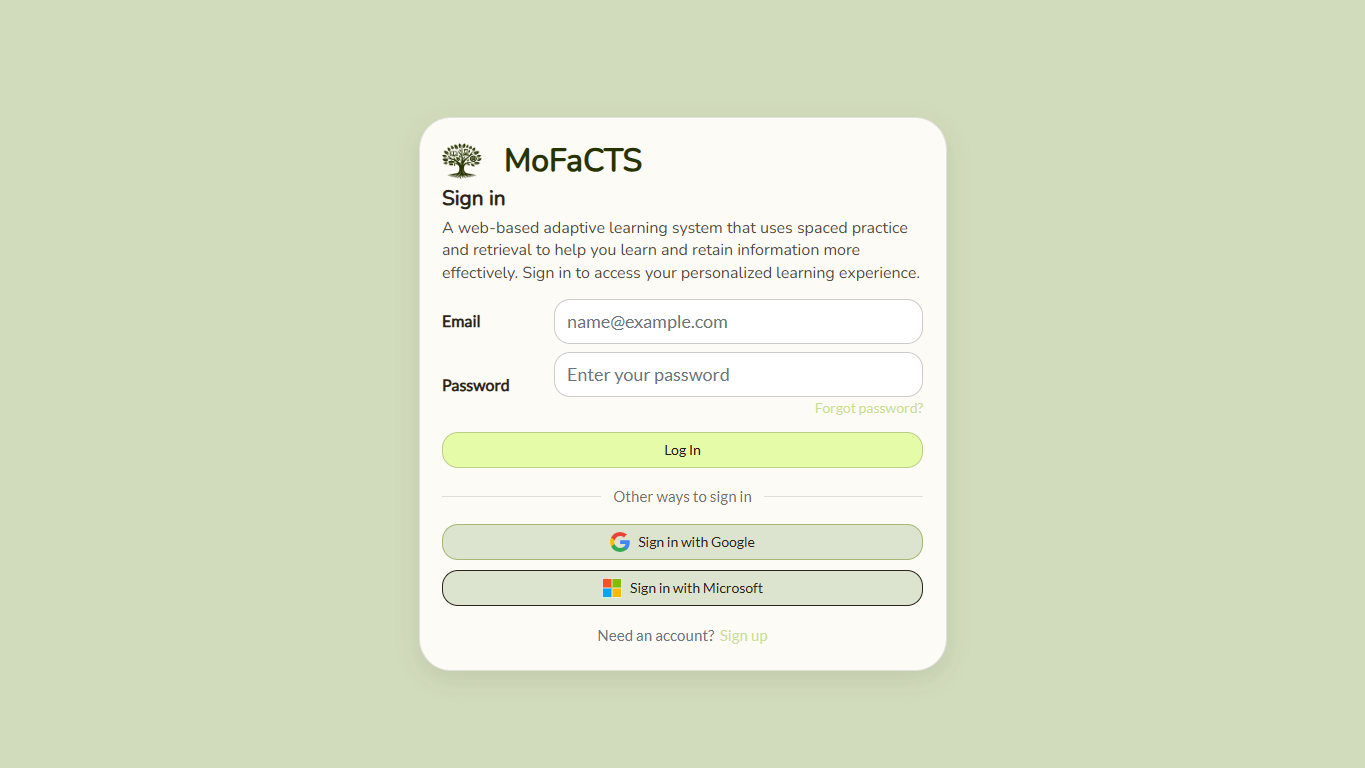
Use the sign-in page your teacher, researcher, or site administrator gives you. Some courses use normal email/password accounts, while some research studies use experiment-specific sign-in links.
Learning Dashboard
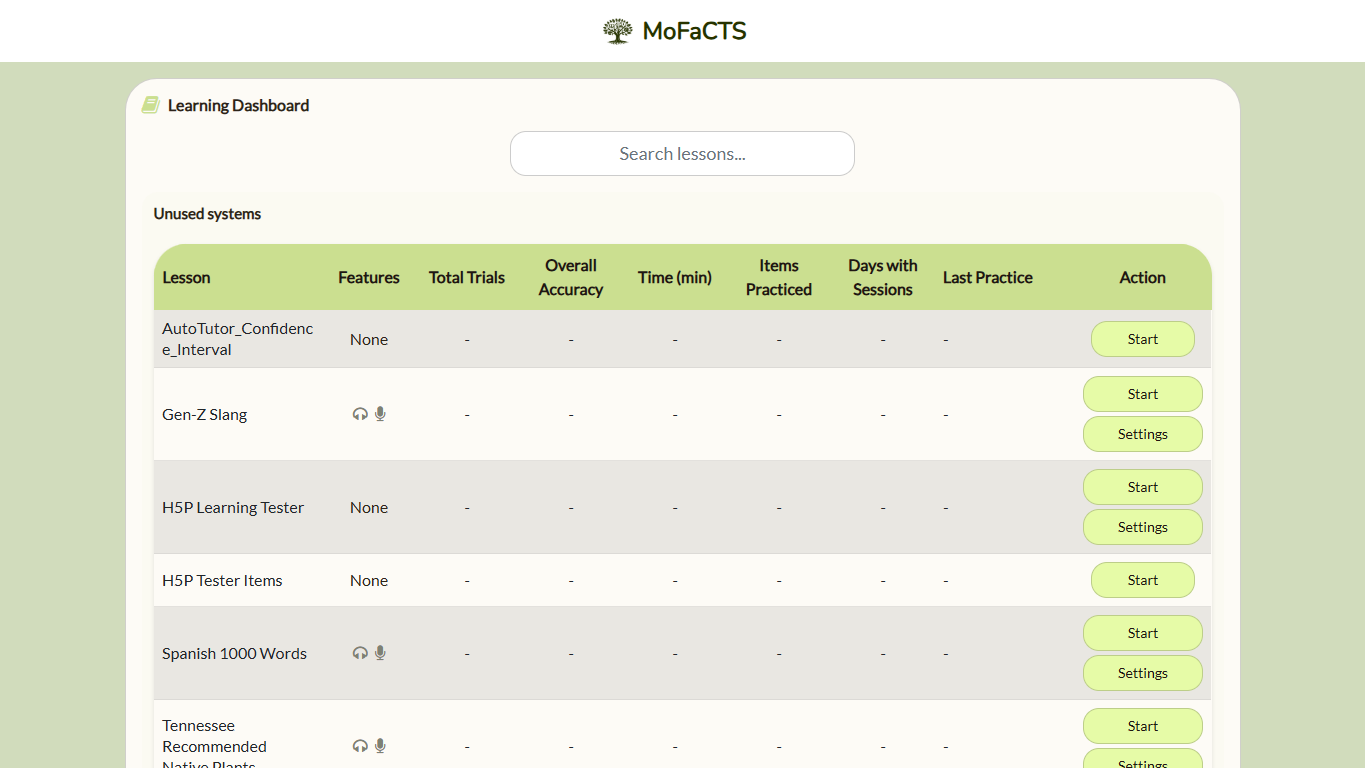
The Learning Dashboard is your home base for all practice activities. When you open it, you'll see a search bar at the top where you can find lessons quickly by name or tag, and below that, a table listing all your available lessons. Your search is remembered for your account in the current browser. Use the clear-search button to show the full list again if lessons seem to be missing.
Your dashboard can include lessons from several sources at the same time:
- lessons you own
- lessons your account has been explicitly shared on
- lessons made public by their owner
- lessons assigned to you through a valid class/course assignment
For each lesson, the dashboard shows how many questions you've answered (Total Trials), your correctness percentage across all attempts (Overall Accuracy), and your performance on the most recent 10 trials (Last 10 Accuracy). You can also see how many minutes you've spent practicing (helpful for meeting course requirements), how many different concepts you've encountered (Items Practiced), how many separate days you've practiced, and when you last worked on the lesson. Small icons indicate whether text-to-speech (headphones icon) or speech recognition (microphone icon) features are available for that lesson.
Lessons you haven't started yet show a green Start button. Once you begin, that changes to a blue Continue button and all your statistics become visible. The dashboard automatically sorts your recently practiced lessons to the top, making it easy to jump right back in.
The headphones indicator appears for lessons authored with spoken prompts or feedback. Its active state also depends on your effective audio mode and an available provider key. Read its label to distinguish audio turned off from missing configuration.
Every lesson in Practice has a Settings panel, including video, assessment, and instruction lessons. Only settings applicable to that lesson are shown. Choose Reset test progress, then Confirm reset, to restart the whole lesson, including its prequiz and adaptive video selection. Reset removes your saved history and attempt state for that lesson family and cannot be undone. Cancel leaves progress intact; personal lesson settings and authored content are preserved. Course Settings does not offer reset, and MoFaCTS also blocks Practice resets for lessons assigned through a current class in which you are enrolled.
Before confirming a reset, check the lesson name shown in its Settings panel.
After a successful reset, the Settings panel closes and the lesson's dashboard progress clears. A failed reset keeps its error available in the panel.
If you do not see an expected lesson, confirm that your enrollment and assignment were recorded for the correct class/section. Public lessons and explicitly shared lessons can appear without any class assignment.
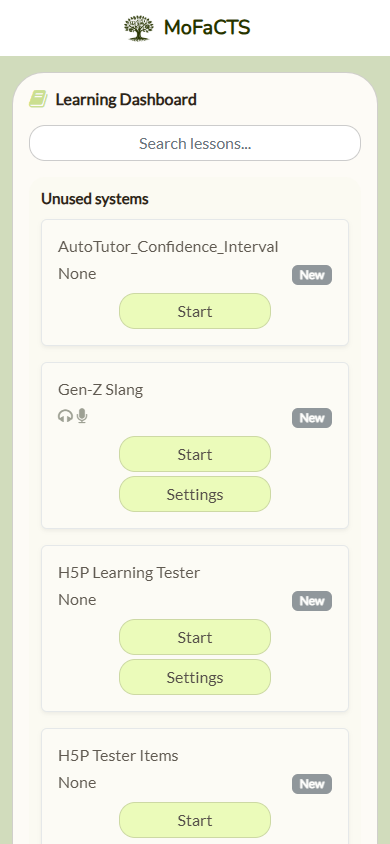
On narrow screens, the dashboard changes from a table into stacked lesson cards:
Courses and Progressive Practice
Course joins and lesson launches display progress or errors beside the affected course or lesson. Read that message before retrying. Account-menu settings report errors beside the relevant setting.
Courses groups lessons under expandable course rows. Expand a course to see its assignments, status, dates, and practice information. Public courses can be visible before you enroll, but an unavailable assignment cannot be launched until the enrollment and availability requirements are met. Use the search to find a course or lesson within the grouped list.
My Courses contains courses you have joined. Public courses appear below it. Choose Join on a public course; if it has several sections, select the section your teacher specified before joining. Start/Continue becomes available when membership and assignment dates permit it. Private courses require enrollment arranged by the teacher and do not appear as public join options.
An open Courses page refreshes when a course starts or ends, an assignment is released, or a due date passes. Returning to the page after leaving the browser tab also checks whether its displayed information has expired. A passed due date changes the overdue label and does not prevent practice.
Open Courses to see lessons assigned through your classes. A progressive lesson appears as an ordered series of ordinary lesson rows. You can start any member by itself. On the second and later members, Progressive starts one adaptive practice session containing that member and all earlier members in the series.
Use Settings beside a learning-session lesson in Courses or Practice to edit your personal practice settings. Both menus use the same editor, and changes save automatically. These settings follow the lesson across launches and reloads. For progressive practice through a selected lesson, that lesson's settings apply to the combined session; earlier lessons' personal settings do not replace them.
Turn on Newest lesson first at the top of the group to assemble the selected lesson first, then earlier lessons in reverse order. Leave it off for the original earliest-to-latest order. Items within each lesson keep their order, and the selected lesson still supplies the practice settings. Shared clusters remain grouped together; the adaptive model still selects each next practice item, including previously practiced items as needed under optimal learning theory. Reloading an open session keeps its chosen order.
Progressive practice does not have a separate completion state or fixed ending; you can practice for as long as you choose. Your work is saved under each original lesson, so practice completed in the combined session contributes to the correct individual lesson history and is available the next time you open that lesson from Courses or Practice.
My Learning
Open My learning directly below Practice in the learner menu to review study sets you have already practiced. Study sets without any recorded practice are not shown. The most recently practiced set is selected by default, and you can switch between the last 7 days, the last 30 days, and all recorded practice for that set.
The page summarizes accuracy when correct/incorrect scoring applies, unique items practiced, active practice minutes, practice days, recent activity, attempts, and the last-practiced date. Model-backed study sets can also show an estimated probability of answering correctly, the challenge target, and counts above and below that target. These values are learning estimates, not grades. AutoTutor and other lesson types omit measures that do not apply rather than displaying zero or a substitute value.
Use Refresh to recalculate the page from your current history, or Continue practice to return to the selected study set. The 28-day activity strip and modeled-status graphics include adjacent numerical detail so the information does not depend on color or hover.
Personal practice timing
During flashcard practice, MENU opens from the left edge and PROGRESS opens from the right when progress reporting is available. The tabs have matching sizes and align across the practice area. SPARC lessons omit the left menu tab.
Where a lesson permits learner settings, you can adjust drill and review study timing. These control how long a question remains available and how long study or feedback is shown. The available controls and allowed values depend on the lesson. Read the setting label, validation and save status.
What is optimal learning?
Optimal learning means keeping you at the right difficulty level - not too hard, not too easy - so you learn most effectively. The memory model estimates which question would be useful to practice next based on your previous correct and incorrect answers for each concept, your overall performance, when you last saw each concept, and how much time has passed.
An incorrect answer can lower the estimated probability of success and lead to more practice. Correct answers and elapsed time also influence selection, so the order is not a fixed rule that repeats every wrong answer immediately. The aim is useful practice at an appropriate level of challenge. The lesson author chooses the desired challenge level. Model estimates help select practice items; they are not grades or a guarantee of future performance.
Testing vs. Studying
Testing yourself is a more effective study method than simply rereading material. Research shows that actively retrieving information from memory (testing) leads to better learning and retention than passively reviewing the same content, especially for text-based learning. This is called the testing effect.
Each question in MoFaCTS is a test of that specific concept. By repeatedly testing yourself, you build stronger, longer-lasting memories than you would by just reading the material over and over.
Types of testing
MoFaCTS supports two main question types: multiple choice and short answer.
Multiple choice questions can appear as standard multiple-choice with two or more answer options, true/false questions, or demographic questions to collect information about you. Answer choices appear in random order. If you answer incorrectly, the system shows the correct answer and may provide explanation feedback. Demographic questions have no correct answer, so no feedback is shown.
You can select answers with touch, a mouse, or the keyboard. Keyboard focus remains visible.
After you submit an answer, the current buttons become inactive and keep their size during the transition. Each new question starts with fresh buttons, so the previous selection's highlight does not carry over, even when the answer choices repeat.
Short answer questions (also called "cloze" or fill-in-the-blank) require you to type your response. The system handles this complexity by accepting synonyms, accounting for spelling errors, and managing variations in how you might phrase your answer.
Profile and Account Menu
Use the Account menu in the top-right corner to open your Profile. Profile lets you set your display name, choose an avatar using initials, an icon, or an uploaded picture, and manage your personal OpenRouter settings for later AI-assisted content creation.
Your email is used for login. Your display name and avatar are the public identity shown in the Account menu. See Profile and Account Menu.
Speech Recognition
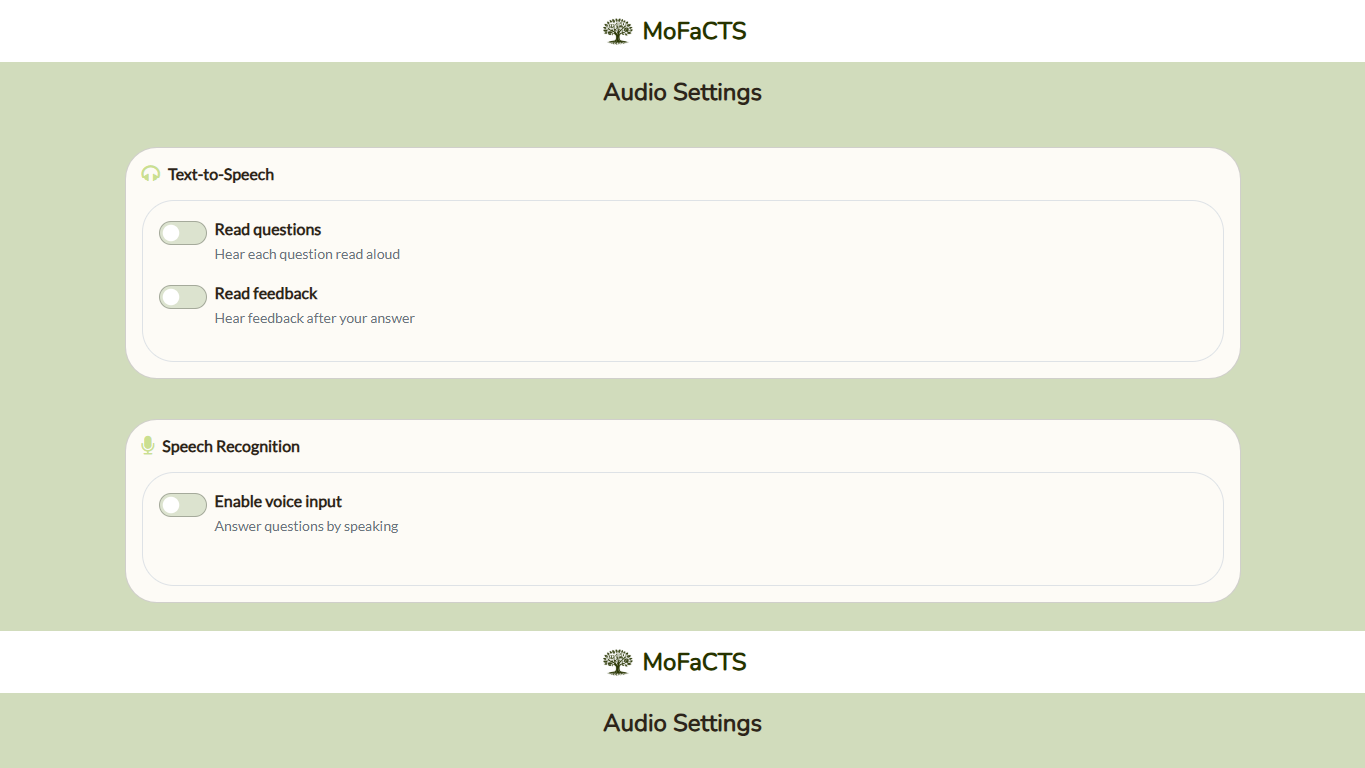
MoFaCTS lets you answer questions and navigate using your voice alone. To get started, open Audio settings from the Account menu and enable voice input.
Allow microphone access when your browser asks. Some classes and studies provide speech access through the lesson; others require a personal Google Speech key. If Audio settings asks for a key you do not have, ask your teacher or site support how speech is configured for your lesson.
Once enabled, select a practice lesson and speak your answer clearly when each question appears. The system will process your audio, tell you whether you were correct, and automatically move to the next question. For best results, speak clearly at a normal pace in a quiet environment, and make sure your microphone is working and allowed in your browser.
For Teachers: See the Audio & Speech Settings guide for detailed configuration options for speech recognition and text-to-speech in your lessons.
Help Page
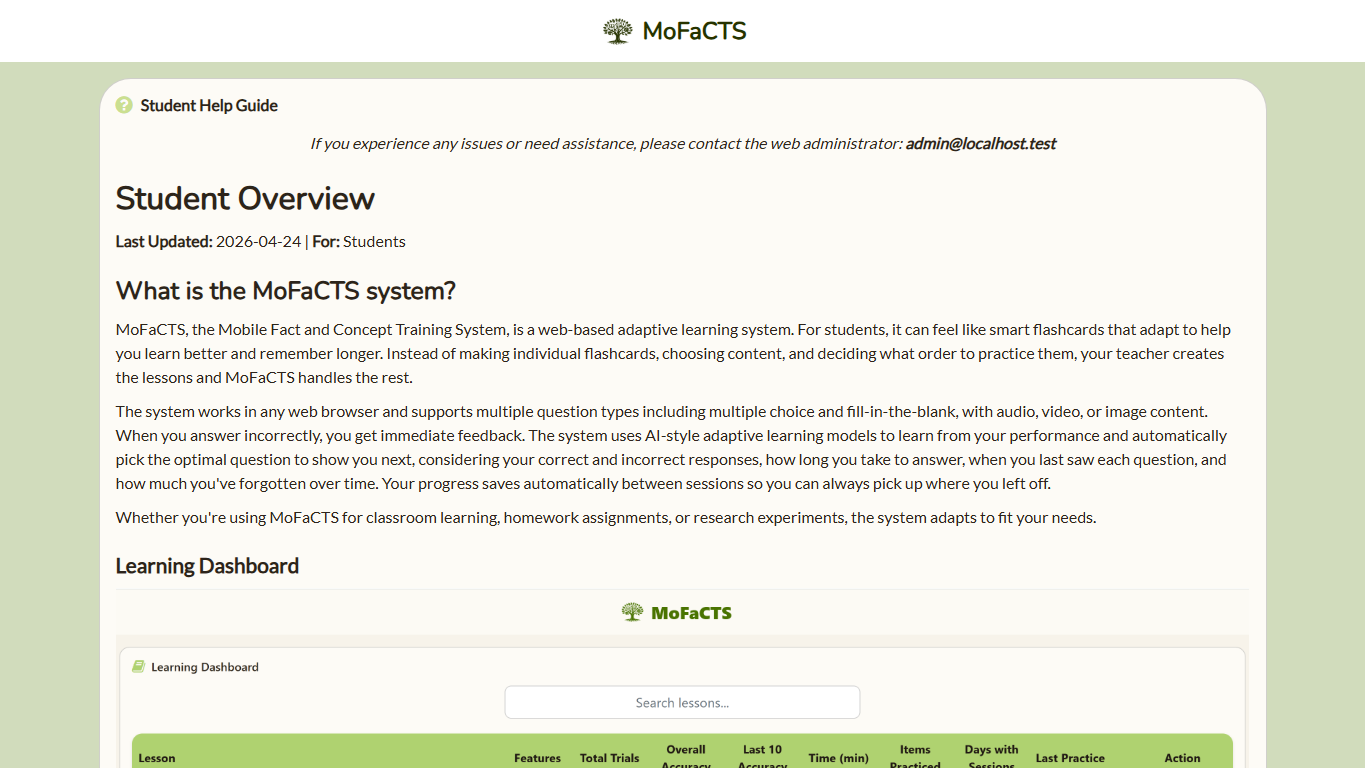
The Help page collects student-facing setup notes and links back to the wiki when you need more detail.
See Also
- FAQ - Frequently asked questions
- Glossary - Canonical terminology
- Troubleshooting - Help with signing in, lessons, audio, and progress