
Workflow
# Class Setup and Assignment Workflow
Last Updated: 2026-10-09 | For: Instructors and administrators
This is the end-to-end operational flow for: create class/section -> upload package -> assign to class -> verify student view -> export data.
Workflow
1. Create a course and sections
- Open Course Management in the admin/teacher interface.
- Enter the course name, semester, time zone, and sections. If no section names are supplied, the system creates section
001. - Course names must be unique for the same teacher and semester.
- Confirm the course and section names before assignment. Use the enrollment link for the intended section; an assignment is not available to an unenrolled learner merely because a link to it exists.
2. Upload the package
- Upload the
.zippackage containing TDF + stimulus + optional assets. - Confirm package appears in Content Upload.
- If upload fails, validate zip structure and filenames.
3. Assign the package to the course
- Select the target class/section.
- Assign the uploaded lesson package as an individual lesson, or create a progressive lesson, select an uploaded ZIP package, and click Add package to progression. Every lesson in that package is added together in natural lesson-name order.
- Use the up/down arrows beside each progressive member to adjust its position; the first Up and last Down arrows are disabled.
- A package containing an inaccessible, incompatible, or already-assigned lesson is blocked as a whole; nothing is partially added.
- Save assignment changes.
Progressive practice preserves assignment member order and each member's selected stimulus order. The composed lesson does not apply individual lessons' shuffle or swap settings; those settings still apply when a lesson is practiced individually. Adaptive scheduling can interleave review trials, so this is the base content order, not a requirement to finish one unit before practicing another. Source card identities and practice history remain shared across individual and progressive runs.
Previously saved progressive runs with shuffled mappings may be rejected by the existing resume compatibility check after this correction. They are not silently remapped, and this change does not delete or modify recorded trial history. Fresh runs use the ordered mapping. Do not clear learner history to bypass a resume compatibility warning.
- If content uses condition-root structure, confirm the correct root target is assigned.
Progressive lessons
A progressive lesson is an ordered course assignment containing at least two compatible lessons. Each member must have exactly two units: Unit 1 instructions and Unit 2 a named, unbounded learning session with a valid cluster list and canonical stimulus identities. A lesson can appear only once across a course's individual and progressive assignments.
Use New progressive lesson, enter a group name, select an uploaded package and choose Add package to progression. The editor adds its eligible lessons in package order and reports blocked packages inline. Use the member remove and arrow controls to establish the final order. The required, visible-on, and due-on settings apply to the group. Teachers may insert, remove, or reorder members after students begin; saved history is retained, and the next launch uses the latest order.
Students can always launch each member individually. Starting with member 2, the Courses page also offers a progressive action that combines every member from the beginning through the selected member. The selected endpoint supplies the instructions and adaptive-learning settings. Progressive practice is open-ended: it has no combined completion state, trial limit, or practice-time limit.
An open progressive session retains the ordering revision with which it launched, including after reload. Inserting or reordering members changes later launches. Removing a member prevents further course-context work for that member; removing the endpoint revokes the open session. If a saved prefix includes a removed member, start again from Courses. Existing history remains attached to its original lessons. Older progressive links without a revision also require a fresh launch from Courses.
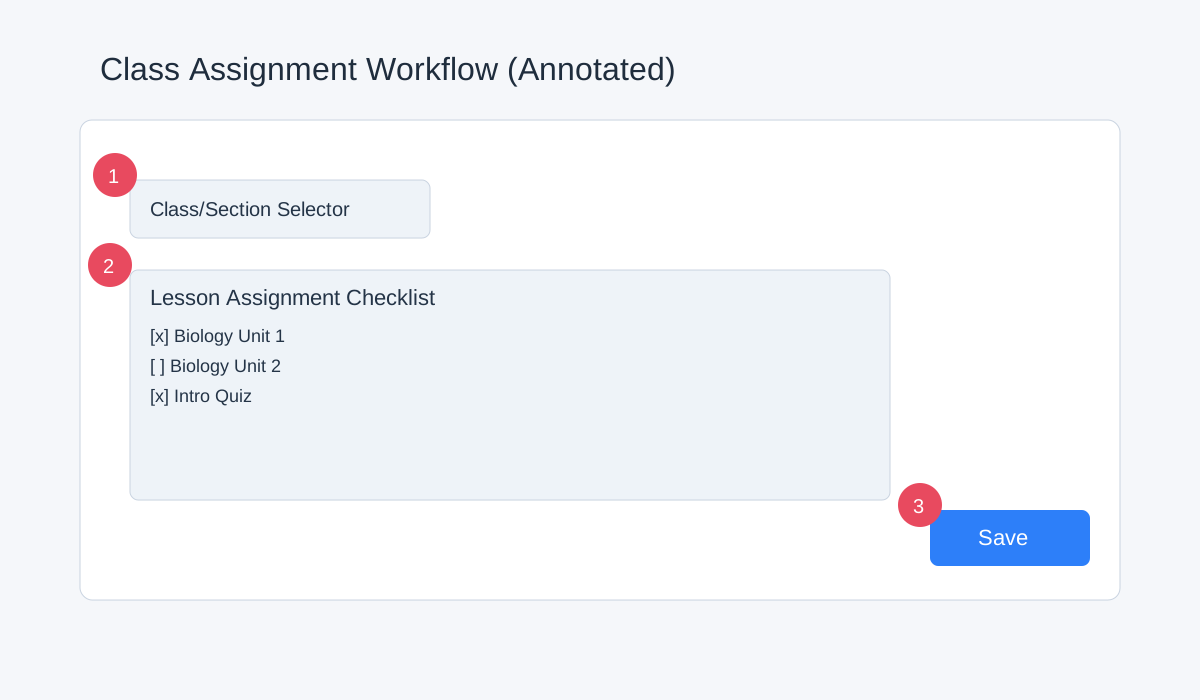
Annotations:
- Class/section selector
- Lesson assignment checklist
- Save assignment button
4. Verify the student view
Public courses are discoverable to signed-in learners. Learners use Join on the Courses page and select a section when several are available. They must join before launching course assignments. Private courses remain visible to enrolled learners, the owner, and administrators; arrange private enrollment through the course controls. Owner/admin access is not evidence that an ordinary learner can launch the assignment.
- Use a student account (or safe impersonation workflow) to verify the lesson appears.
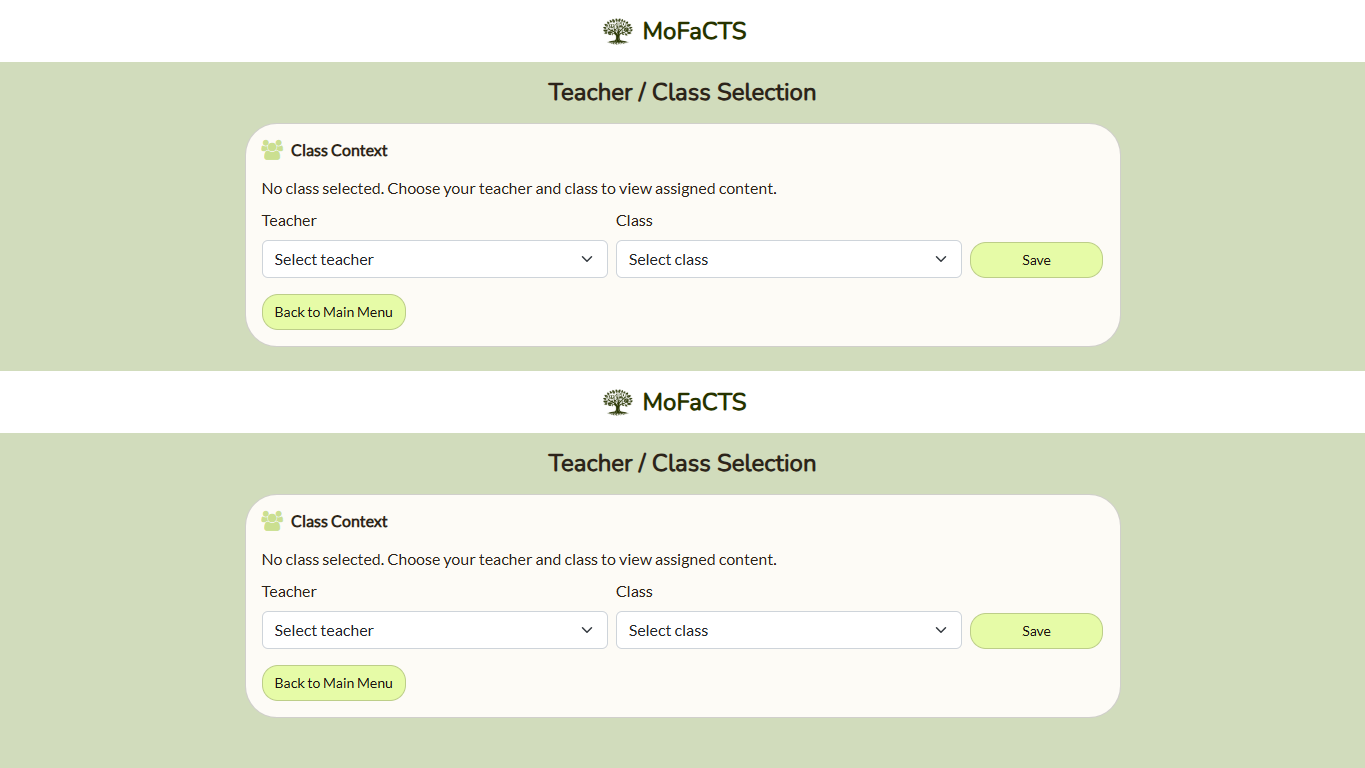
- Confirm sign-in completes and the student is enrolled in the expected class/section.
- Confirm any intended public lesson has
setspec.userselect = "true". - Confirm any intended shared lesson was explicitly shared to the target account.
- Confirm
Start/Continuebehavior and basic trial rendering. - Verify media/audio if used.
5. Export data
- Open Data Download / Data Output.
- Export expected owner-scoped report.
- Spot-check rows for recent student activity.
Verification Checklist
- Class and section exist
- Package upload is present and parseable
- Assignment is saved to expected class
- Progressive members are eligible, unique within the course, and in the intended order
- Sign-in and class-select route to expected class context
- Student can see and launch lesson
- Data export contains expected fields and recent attempts
Fast Failure Triage
If assignment appears correct but students do not see lessons:
- Re-check class assignment target and section mapping.
- Re-check whether the lesson should be public, explicitly shared, or class-assigned.
- Re-check student enrollment for the assigned section/course.
- Confirm package references resolve (media/assets present).
- Validate via Data Output that new activity rows appear after launch attempts.