
Overview
# Audio & Speech Settings
Last Updated: 2026-10-31 | For: Teachers & Content Creators | Level: Intermediate to Advanced
Overview
The tables below summarize the JSON fields that control speech recognition (SR) and text-to-speech (TTS) behavior in TDF files. API keys, language, voice, and learner-audio defaults live in tutor.setspec; units can override whether SR is enabled and which TTS mode is used; card-delivery timing lives in deliverySettings.
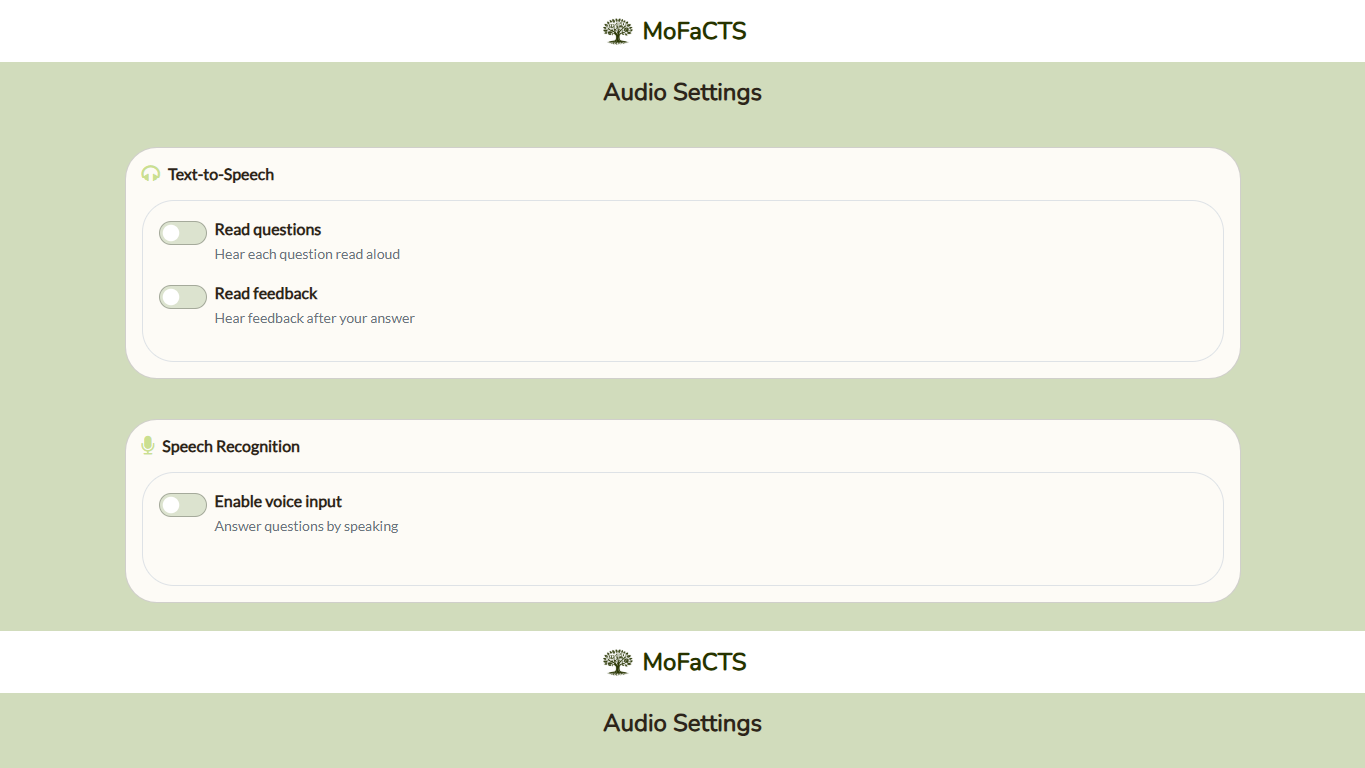
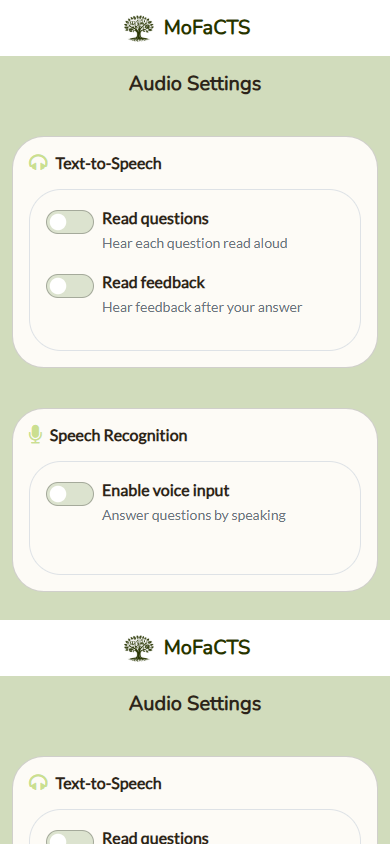
On mobile, the same controls stack vertically:
Dashboard audio indicators
The lesson's headphones and microphone indicators reflect the effective audio settings. An available API key alone does not mean the feature is enabled. The indicator's tooltip distinguishes an enabled feature, a missing key, a feature disabled for the lesson, and a feature turned off in the learner's settings. Check both the lesson configuration and the learner's Audio Settings when diagnosing an inactive indicator.
Speech Recognition (Microphone Input)
| Setting | Location | Options | Default | Description |
|---|---|---|---|---|
speechAPIKey |
setspec |
Google Cloud Speech API key | unset | Required for SR; without a key the microphone toggle is hidden. |
audioInputEnabled |
setspec |
"true" | "false" |
"false" |
Enables SR for the lesson. Must be "true"; untagged lessons also require the learner's voice-input switch. Experiment-tagged lessons use authored settings automatically. |
audioInputEnabled |
unit |
"true" | "false" |
inherited | Overrides the lesson SR setting for this unit. Omitting it inherits setspec.audioInputEnabled. |
audioInputSensitivity |
setspec |
20-80 (integer) |
60 in profile defaults |
Microphone energy threshold presented on the profile slider. Higher values ignore quieter audio. |
speechIgnoreOutOfGrammarResponses |
setspec |
"true" | "false" |
"true" |
When "true", SR ignores transcripts that are not in the current answer set. Missing or blank values use the enabled default. |
srfilterclose |
setspec |
"true" | "false" |
"true" |
Filters phonetically close non-target answers from the recognition grammar when a correct answer is being requested. Missing or blank values use the enabled default; invalid values are rejected. |
speechOutOfGrammarFeedback |
setspec |
string | "Response not in answer set" |
Message shown when an out-of-grammar transcript is discarded. |
autostopTranscriptionAttemptLimit |
deliverySettings |
integer (count) | 3 |
Maximum number of SR attempts before the system stops retrying transcription for the card. |
Text-to-Speech & Audio Prompts
The Test Voice control uses the free documentation samples for the ten offered
en-US-Standard-A through en-US-Standard-J voices at
https://docs.cloud.google.com/text-to-speech/docs/audio/<voice>.wav. It does not
call paid synthesis or require a provider key. Starting another preview stops the
previous one; leaving Audio Settings stops playback. Playback failures appear in
the existing inline TTS status area in the interface language. The October 9 staging2 acceptance record includes Chrome sample playback and inline failure display for candidate a3155584. That result applies to the representative repair batch; it does not establish every browser or production deployment. See Security Audit Operations for the evidence boundary.
| Setting | Location | Options | Default | Description |
|---|---|---|---|---|
textToSpeechAPIKey |
setspec |
Google Cloud TTS key | unset | If set, server-side TTS is used; otherwise the browser speech voice handles prompts. |
audioPromptMode |
setspec |
"silent" | "question" | "feedback" | "all" |
"silent" |
Default generated spoken-audio mode applied when a learner opens the lesson. Users can toggle modes in the Audio dialog. |
audioPromptMode |
unit |
"silent" | "question" | "feedback" | "all" |
inherited | Overrides the lesson TTS mode for this unit. Omitting it inherits setspec.audioPromptMode; "silent" explicitly disables unit TTS. |
audioPromptVoice |
setspec |
Google/SSML voice id | "en-US-Standard-A" |
Voice used for question prompts (when TTS is available). |
audioPromptFeedbackVoice |
setspec |
Google/SSML voice id | "en-US-Standard-A" |
Voice used for feedback prompts. |
audioPromptQuestionSpeakingRate |
setspec |
0.25-4.0 (float) | 1 |
Speed multiplier for question prompts. |
audioPromptFeedbackSpeakingRate |
setspec |
0.25-4.0 (float) | 1 |
Speed multiplier for feedback prompts. |
audioPromptQuestionVolume |
setspec |
-6 to 6 (dB) | 0 |
Gain applied to question prompts. |
audioPromptFeedbackVolume |
setspec |
-6 to 6 (dB) | 0 |
Gain applied to feedback prompts. |
audioPromptSpeakingRate |
setspec |
0.25-4.0 (float) | 1 |
Legacy overall speaking rate; used if voice-specific rates are omitted. |
Unit Overrides
Use top-level unit fields to vary audio behavior within one lesson:
{
  "unitname": "Spoken practice",
  "audioInputEnabled": "true",
  "audioPromptMode": "all",
  "learningsession": { "clusterlist": "0-9" }
}
Unit values override the matching lesson values. For untagged lessons, personal microphone and spoken-audio choices remain gates. A lesson with Experiment in tutor.setspec.tags instead uses the condition and unit audio settings automatically, even when launched from the dashboard. Matching ignores case and surrounding whitespace. Participants do not need a profile setup visit; personal settings and saved personal audio overrides are not changed. Voices, rates, volume, and sensitivity use the condition values and existing audio defaults when omitted. Speaking units enable microphone input; typing units disable it; audioPromptMode: "silent" keeps post-tests silent. Browser microphone permission and a working speech API key are still required. A newly provisioned participant can use the configured shared keys before their first answer: audio status checks and provider calls use the same experiment lesson-execution authorization as content reads. Failed key authorization or a missing required speech key blocks the speaking unit instead of switching it to typed input. The tag changes audio policy only; it does not grant access or supply credentials.
Delivery Timing & Feedback
Language ownership
Interface language, authored lesson language, recognized-response language, and spoken-output language are separate settings. Platform prompts use the interface locale's voice mapping. Authored speech uses textToSpeechLanguage or an explicit voice locale; missing required language information produces an error. Speech recognition defaults to English (en-US) when the language is absent or blank, including audio-settings warmup outside a lesson. Existing lessons do not need a language field added. An optional speechRecognitionLanguage override may select another supported Google Speech-to-Text code. Repeated authored values retain their first nonblank selection; explicitly malformed or unsupported values report a configuration error. The English default and explicit overrides are independent of the interface locale. Changing the interface language does not translate a lesson or authorize microphone use. Authors should test the actual language and voice configuration for their lesson.
| Setting | Location | Options | Default | Description |
|---|---|---|---|---|
timeuntilaudio |
deliverySettings |
integer (ms) | 0 |
Delay before playing question audio/TTS for a prompt. |
prestimulusdisplaytime |
deliverySettings |
integer (ms) | 0 |
Optional pre-stimulus display period before SR/TTS begins. |
Timing behavior in the current source contract:
- Trial timers begin when the card content starts fading in. Fade-in and fade-out are part of the configured duration.
- Pre-recorded prompt audio and
timeuntilaudioare included in the configured response window. Avoid very shortdrillvalues when prompt media must play before a learner can reasonably answer. - Generated TTS can push an expired timer forward only until active playback finishes; it does not restart the timer from the beginning.
- Text-entry activity and speech-recognition activity reset the response timeout.
Older deployed builds can start the response countdown after prerecorded question audio finishes. Their exported reveal-to-timeout latency therefore includes audio plus the configured response window: approximately four seconds of audio followed by drill = 10000 can yield a 14-15-second timeout without any input. This differs from the current contract above. Use the collection build to select the interpretation; see Timer Behavior Depends on the Collection Build.
Exported Time generally marks first input on a card attempt; Problem Start Time marks reveal. Start and end latencies are durations from reveal, and equal start/end latency on a no-input timeout results from substituting the timeout for missing first input. See Interpreting Trial Timing for the complete field definitions and formulas.
API Key Usage
How API Keys Work
See Glossary for canonical definitions of embedded API keys, profile flow, and experiment logins.
Experiment Logins (Embedded Keys)
In experiment logins (and other routes that set useEmbeddedAPIKeys to true), the lesson's embedded keys (speechAPIKey, textToSpeechAPIKey) are sent directly to Google for both SR and TTS.
Normal Profile Flow
In the normal profile flow (useEmbeddedAPIKeys remains false):
- Text-to-Speech still uses the embedded
textToSpeechAPIKeywhen present; if the call fails the browser'sspeechSynthesisAPI handles speech output. - Speech Recognition first tries the learner's saved key (
Meteor.user().speechAPIKey). If none is stored, prompt the learner to enter one or switch to a flow that enablesuseEmbeddedAPIKeys; otherwise SR requests only reach Google automatically during experiment sessions.
Configuration Notes
Important Reminders
- Field names are case-sensitive. Many legacy TDF values are serialized as strings, but current delivery display settings also accept booleans/numbers where the schema defines them.
- When no
textToSpeechAPIKeyis present, MoFaCTS falls back to the browser's built-inspeechSynthesisfor any enabled prompts. - Personal audio controls apply to untagged lessons. Experiment-tagged lessons use the authored condition and unit settings instead.
- Runtime behavior depends on valid media references; unresolved audio/media references can fail delivery instead of silently skipping.
- Speech matching preserves numeric distinctions. Close-response matching checks the numbers in the recognized response against the target before accepting a phonetic match. The current number-word normalization handles common English forms; do not assume equivalent number-word handling in every language.
Example Configuration
{
  "setspec": {
    "name": "ExampleLesson",
    "lessonname": "Example Lesson with Audio",
    "audioInputEnabled": "true",
    "audioInputSensitivity": "20",
    "speechAPIKey": "YOUR_GOOGLE_SPEECH_API_KEY",
    "speechIgnoreOutOfGrammarResponses": "true",
    "speechOutOfGrammarFeedback": "Please say one of the possible answers",
    "textToSpeechAPIKey": "YOUR_GOOGLE_TTS_API_KEY",
    "audioPromptMode": "question",
    "audioPromptVoice": "en-US-Standard-B",
    "audioPromptQuestionSpeakingRate": "1.2",
    "audioPromptFeedbackSpeakingRate": "1.0"
  }
}
Common Use Cases
Enable Speech Recognition Only
{
  "setspec": {
    "speechAPIKey": "YOUR_API_KEY",
    "audioInputEnabled": "true",
    "audioInputSensitivity": "20"
  }
}
Enable Text-to-Speech Only
{
  "setspec": {
    "textToSpeechAPIKey": "YOUR_API_KEY",
    "audioPromptMode": "question",
    "audioPromptQuestionSpeakingRate": "1.0"
  }
}
Enable Both SR and TTS
{
  "setspec": {
    "speechAPIKey": "YOUR_SPEECH_API_KEY",
    "audioInputEnabled": "true",
    "textToSpeechAPIKey": "YOUR_TTS_API_KEY",
    "audioPromptMode": "all"
  }
}
Strict Answer Matching for Speech
{
  "setspec": {
    "speechAPIKey": "YOUR_API_KEY",
    "audioInputEnabled": "true",
    "speechIgnoreOutOfGrammarResponses": "true",
    "speechOutOfGrammarFeedback": "That answer is not in the expected set. Please try again."
  },
  "unit": [
    {
      "deliverySettings": {
        "autostopTranscriptionAttemptLimit": 3
      }
    }
  ]
}
Troubleshooting
Use the canonical troubleshooting page: Troubleshooting.
Quick checks:
- Confirm lesson-level audio settings are present and valid.
- Confirm referenced media resolves in the assigned package scope.
- Confirm browser permissions and HTTPS requirements are met.
See Also
- Content Creation Reference Tables - Audio/speech field definitions
- Student Overview - Student speech recognition setup
- Glossary - API key flow definitions
- Troubleshooting - SR/TTS troubleshooting