
Quick Start: Content Creation
Last Updated: 2026-10-09 | For: Teachers & Content Creators
This is the canonical getting-started page for lesson authoring.
Use this page if you want the normal path:
- make a simple lesson package
- upload it
- test it
- assign it
Use advanced pages only after this flow works.
What You Need
Every lesson package starts with:
- a TDF file that defines lesson structure and behavior
- a stimulus file that contains prompts, answers, and media references
The easiest starting point is to download an existing example package and modify it.
Default Workflow
Step 1: Download an Example
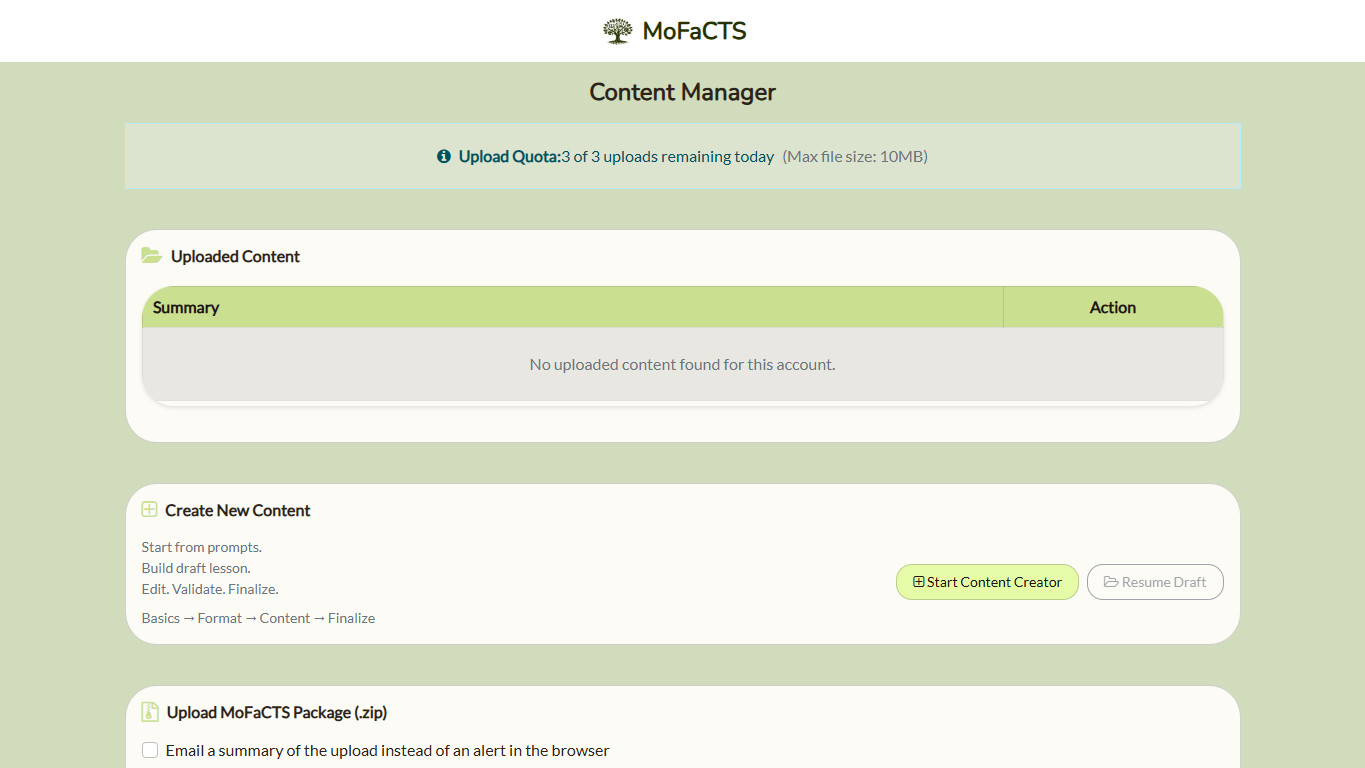
Log into your MoFaCTS instance and download a demo TDF package from Content Upload.
Step 2: Start with the Smallest Possible Lesson
Minimal TDF:
{
  "tutor": {
    "setspec": {
      "lessonname": "My First Lesson",
      "userselect": "true",
      "stimulusfile": "my-questions.json"
    },
    "unit": [
      {
        "unitname": "Practice",
        "learningsession": {
          "clusterlist": "0-0",
          "unitMode": "distance"
        },
        "deliverySettings": {
          "drill": "30000",
          "correctprompt": "1000"
        }
      }
    ]
  }
}
Minimal stimulus file:
{
  "setspec": {
    "clusters": [
      {
        "stims": [
          {
            "display": {
              "clozeText": "The capital of France is ______."
            },
            "response": {
              "correctResponse": "Paris"
            }
          }
        ]
      }
    ]
  }
}
Step 3: Edit the Files
Editing stimulus clusters preserves the stimulus file's other metadata, including SPARC pages. Lesson editing preserves the source structure of a condition root instead of adding runnable units merely because the editor displays defaults. Review the downloaded package after substantial edits, especially when mixing document pages, ordinary clusters, and condition families.
- change the lesson name
- change the prompt and answer content
- save both files
Step 4: Upload the Package
- zip the TDF and stimulus file together
- go to Content Upload
- click Upload Package
- wait for processing to complete
Top-level tdfId is the portable identity of a TDF. An ID-less first import or an incoming ID that is absent from the system receives a fresh identity. This includes re-uploading a previously deleted system. An existing ID that you can manage produces an update plan requiring confirmation; another owner's ID is rejected. Filenames do not determine identity. Use the package downloaded from MoFaCTS for later updates because it includes the assigned IDs and the root's conditionTdfIds.
An ID-bearing package cannot update content the uploader is not allowed to manage. Filenames remain display and ZIP-layout labels; they are not lesson or relationship identity.
For separate media uploads, select the owning lesson before choosing or dropping the file. If an older browser reports invalid-upload-target, reload Content. Existing type-mismatched media links are repaired by a bounded startup process only when their recorded lesson and identifier match; unresolved records require review. Do not upload a duplicate to repair a missing preview. Operators can inspect the media identity and repair guide.
Use Import as copy when you want a separate lesson family. It assigns new IDs to every TDF and remaps the root's conditionTdfIds, preserving the source records. Remove or change any experimentTarget already owned by another available root before importing the copy.
An update confirmation refers to one expiring server preflight plan. If content or the package changes, the plan expires, or a different account tries to use it, the server rejects the update before writing content. Obtain a fresh preflight and review its confirmation again.
For a condition experiment, the package owns the whole family. The root has ordered condition and conditionTdfIds arrays and no tutor.unit; each child has a nonempty runnable unit. These relationship fields are hidden/read-only in the JSON editor. Download the current package before changing the family, then reupload the complete package. You may add or reorder conditions, but you cannot remove an established member or delete a referenced child separately. Whole-family deletion remains available through its explicit confirmation. Deletion makes its learner history and resume data unavailable while retaining the records in the database. A later upload starts fresh, with new identities for the family. Updating a system that still exists preserves its identity and attempts.
If Content Manager reports that a lesson requires identity repair, do not add IDs by guessing or rename files to work around it. The root remains unavailable until the server's bounded identity migration resolves every member uniquely or an administrator applies an explicit dry-run-validated repair mapping.
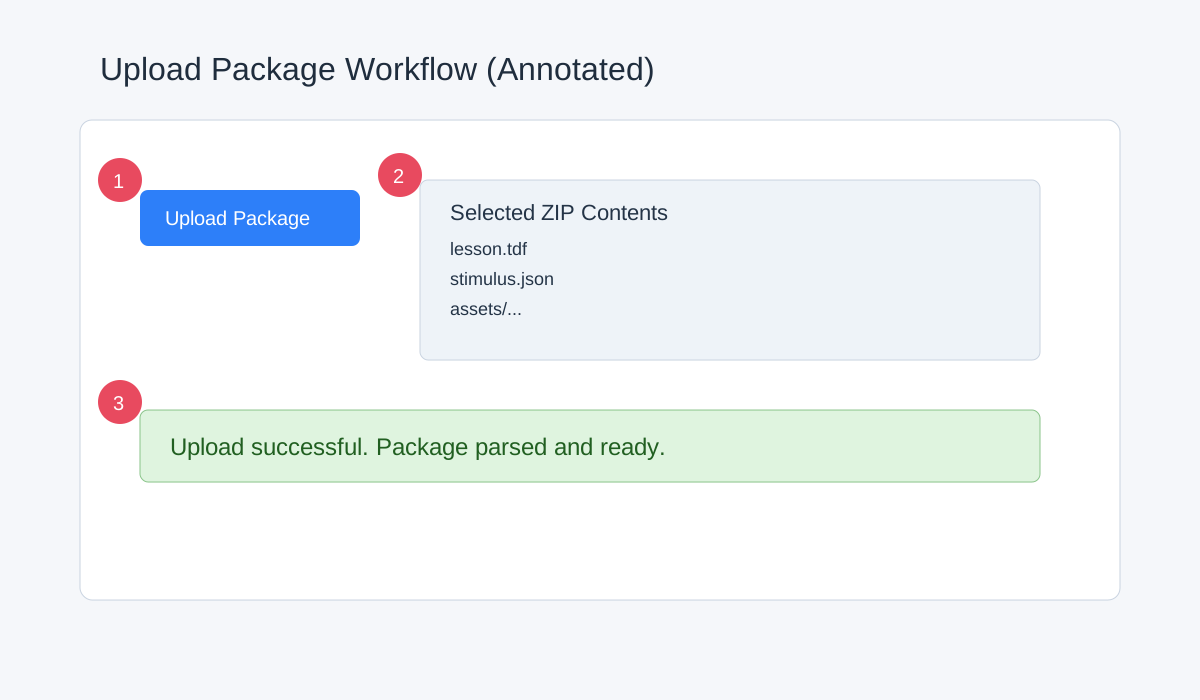
Annotations:
- Upload Package button
- Selected zip package contents
- Successful upload confirmation
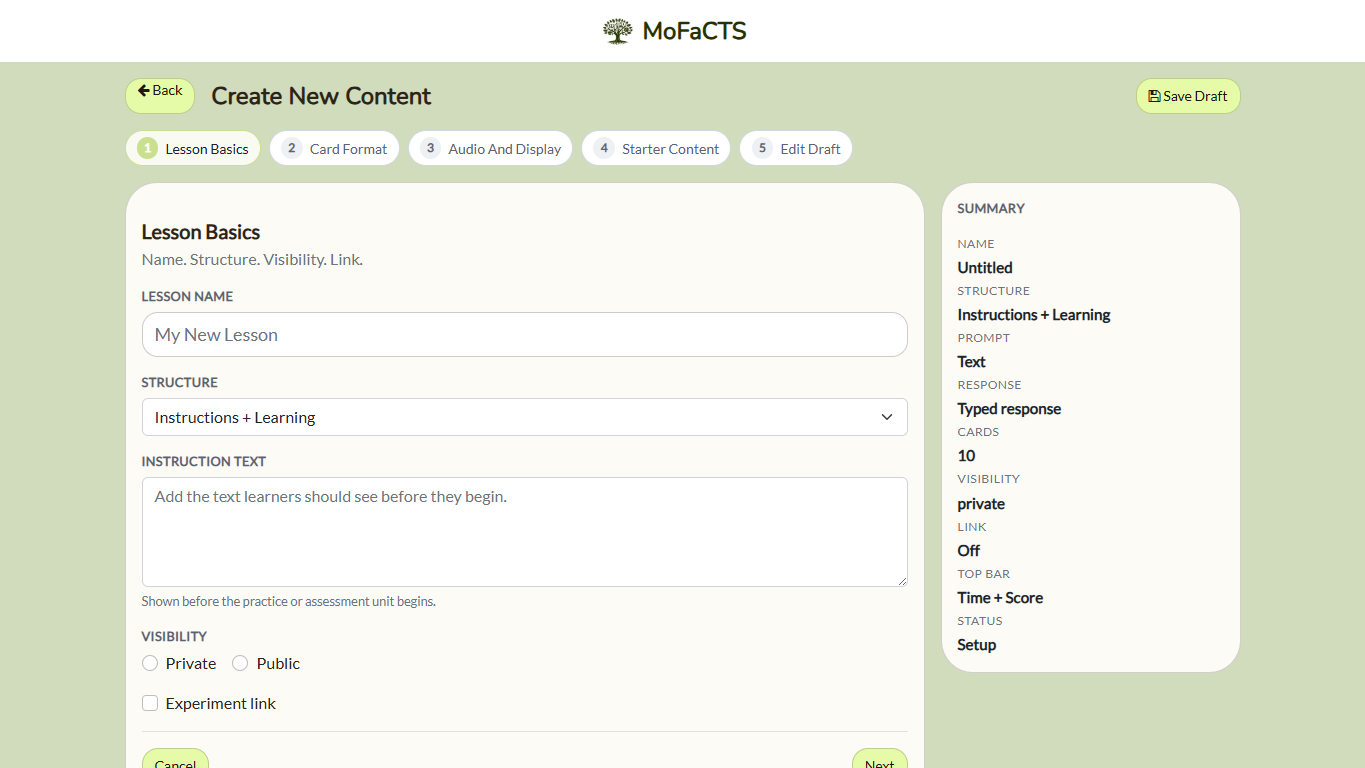
To open the guided manual content creator, choose Content in the sidebar, then Advanced: build manually below Create New Content. This opens the existing step-by-step creator. If your account needs a public creator name, MoFaCTS first directs you to Profile to supply it.
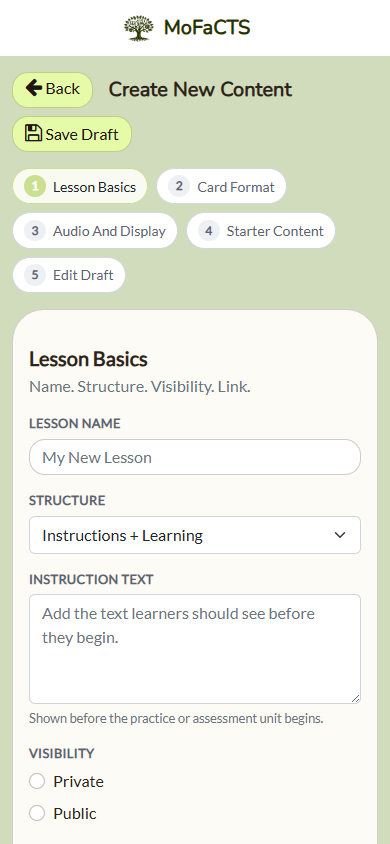
On mobile, the content creator keeps the same step order in a narrower layout:
AI-assisted creation
Use Create New Content on the Content page. An administrator configures the OpenRouter key, model, and reasoning controls for AI creation. Enter authoring notes, choose Learning or Test, and press Submit. A run creates text prompts or image prompts; correct responses are always text. The status area shows progress, and you can edit the generated title during review.
Text creation supports four source strategies:
- definitions for entries retrieved from a selected Wikipedia list;
- exact prompt/response pairs mapped from two retrieved table fields;
- a requested table generated in one call, up to 250 rows, with an external-verification notice;
- a pasted Markdown, CSV, TSV, or aligned-text table reformatted into clear prompt/response columns.
Source-based runs require selection from real pages and regions supplied by the application. Generated or provided tables must have valid rows, distinct nonblank prompts, and the requested count. A failed table is rejected as a whole; it is not silently replaced with a different source.
For a relationship already expressed in a source table, request the two fields directly—for example, state as prompt and capital as response. The field-mapping strategy copies those supplied row values into pairs. Blank selected values or duplicate prompts need correction in review.
Review every stimulus and correct response before saving. Image runs retain missing slots with a reason. Use file selection or drag/drop to replace an image during review; these uploads do not define the initial item list. Located and replacement images are converted in the browser to WebP. Save is blocked until every required item is complete.
One working record and its images are kept in this browser's IndexedDB. Reloading this browser can resume it. A successful Save or explicit Discard clears it. The server processes authenticated AI calls and the final package save; it does not store working drafts or draft images. Administrators can inspect the pipeline through the AI Content Prompt Lab in Admin Tests.
Current working records use contract version 5. An older or invalid record is rejected rather than silently converted into a different source workflow. Browser-local draft retention is separate from a lesson saved on the server.
Keep source formats and persisted uploads distinct:
- Upload Package persists MoFaCTS
.zippackages only. - Import from Anki analyzes
.apkgin the browser and persists only the generated MoFaCTS.zip. - Import from Canvas/Common Cartridge analyzes
.imsccin the browser and persists only the generated MoFaCTS.zip. - Manage media uploads image, audio, or video files directly into a specific lesson and stimulus set.
In the content editor, select an image thumbnail to inspect it at full size; click the preview or press Escape to close it. You can drop a replacement image on its thumbnail or upload target. Review the saved question and downloaded package after replacing media.
- AI working images remain only in browser-local storage until the final package save.
Step 5: Test the Lesson
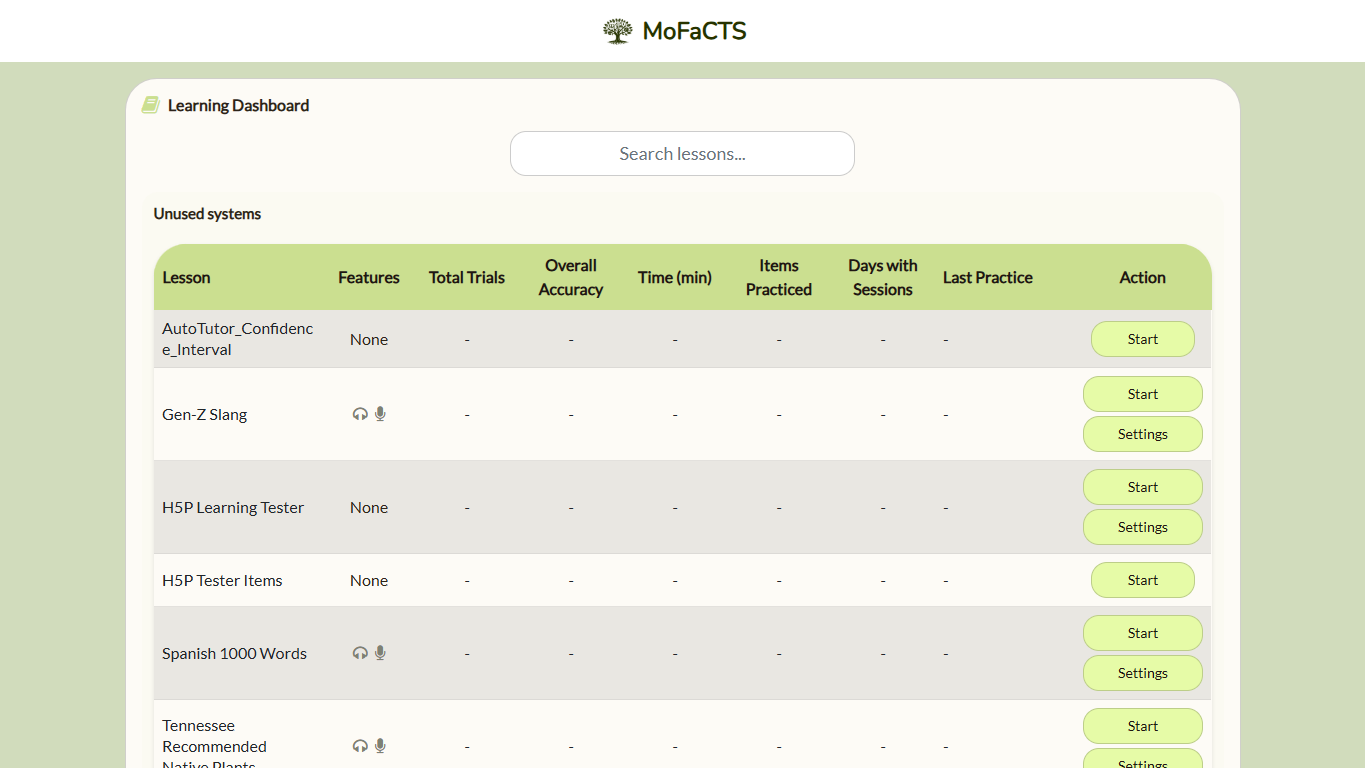
- find the lesson on the dashboard
- click Start
- verify the prompt displays correctly
- verify any media resolves
- verify one test attempt appears in export data
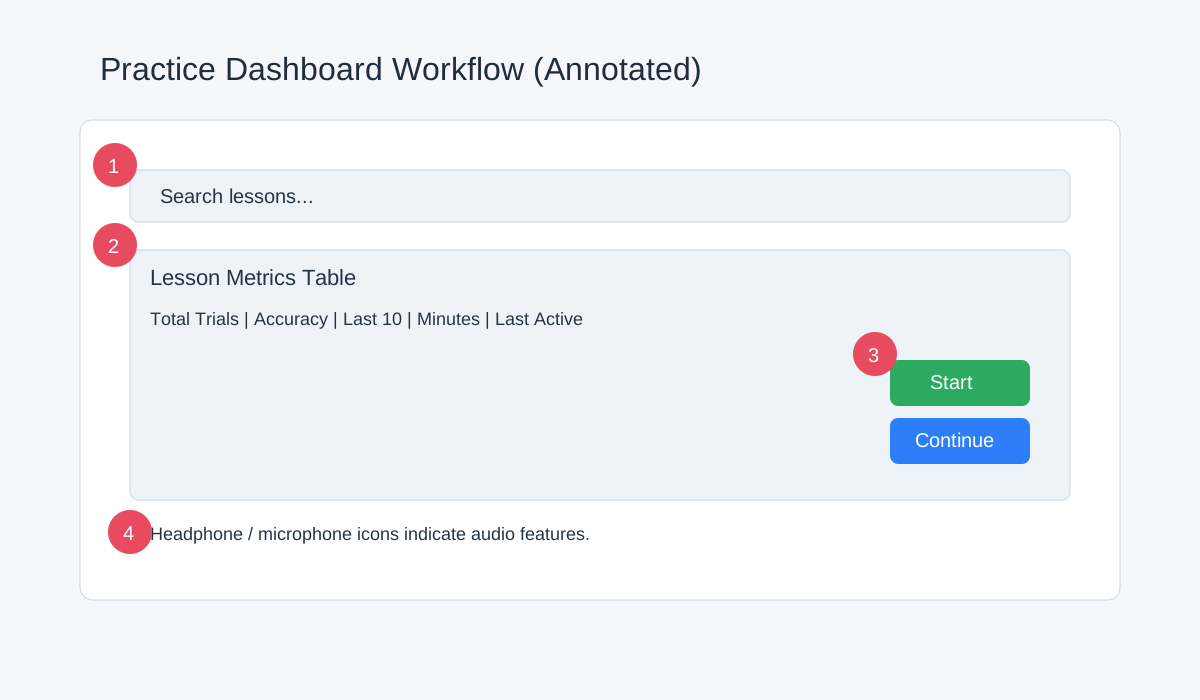
Annotations:
- Lesson row
- Start or Continue action
- Practice statistics
Minimal Mental Model
Keep these boundaries straight:
setspecis lesson-wide configurationunitcontrols one section of the lessondeliverySettingscontrols timing, feedback, answer controls, and display behavior- the stimulus file contains the actual prompt and response content
Common TDF Fields
This is a subset of the fields most authors need. Use Content Creation Reference Tables for the full reference.
| Field | Required | Description |
|---|---|---|
lessonname |
Yes | Full display name |
userselect |
Yes | Show the lesson on the dashboard |
stimulusfile |
Yes | Filename of the stimulus file |
lfparameter |
No | Open-response match tolerance |
audioInputEnabled |
No | Enable speech recognition |
audioPromptMode |
No | Generated spoken-audio mode: silent, question, feedback, or all |
Units
Most authors need only these unit ideas:
- instruction-only unit: shows
unitinstructionsorpicture, then continues to the next unit - learning session (
learningsession): adaptive practice - assessment session (
assessmentsession): fixed quiz or test - video session (
videosession): video playback with optional checkpoint questions - SPARC session (
sparcsession): a TutorScript document, interactive exercises, a timed worksheet, or SPARC AutoTutor dialogue
H5P content is no longer accepted for authoring or package upload. Historical H5P learner records remain readable and exportable, but H5P activities cannot be launched.
Example instruction unit:
{
  "unitname": "Welcome",
  "unitinstructions": "<p>Welcome. Click Continue when ready.</p>"
}
Use this form when the unit is only an instruction screen. To show instructions before practice or video playback, put the same unitinstructions field on a learning, assessment, or video unit.
Example bundled instructions before a session:
{
  "unitname": "Practice",
  "unitinstructions": "<p>Answer each prompt. The system may repeat difficult items.</p>",
  "learningsession": {
    "clusterlist": "0-9",
    "unitMode": "distance"
  },
  "deliverySettings": {
    "drill": "30000",
    "correctprompt": "1000"
  }
}
The same unitinstructions pattern can be used on assessmentsession and videosession units.
Common Delivery Settings
This is a subset of the most-used settings. Use Content Creation Reference Tables for the full reference.
| Setting | Description | Example |
|---|---|---|
drill |
answer time limit in ms | 30000 |
correctprompt |
correct-message duration in ms | 1000 |
reviewstudy |
review duration after wrong answer | 6000 |
fontsize |
stimulus font size in pixels | 24 |
displayTimeoutBar |
show timeout progress bar | true |
displayPerformance |
show performance/status block | true |
Common Prompt Types
Fill-in-the-Blank
{
  "display": {
    "clozeText": "The powerhouse of the cell is the ______."
  },
  "response": {
    "correctResponse": "mitochondria"
  }
}
Image-Based
{
  "display": {
    "imgSrc": "heart-diagram.jpg"
  },
  "response": {
    "correctResponse": "aorta"
  }
}
Multiple Choice
Set buttontrial: "true" in the unit and provide response.responses in the stimulus entry:
{
  "display": {
    "text": "What is 2 + 2?"
  },
  "response": {
    "correctResponse": "4",
    "responses": ["3", "4", "5", "6"]
  }
}
Common Starting Recipes
Spelling-Tolerant Lesson
{
"setspec": {
  "lfparameter": "0.85"
},
"deliverySettings": {
  "allowPhoneticMatching": "true"
}
}
Timed Quiz
{
"deliverySettings": {
  "drill": "15000",
  "reviewstudy": "3000",
  "correctprompt": "500"
}
}
Self-Paced Study
{
"deliverySettings": {
  "drill": "0",
  "skipstudy": "true",
  "correctprompt": "1000"
}
}
Before You Assign It
- test the lesson yourself
- confirm it appears in the intended class context
- confirm media works
- confirm one launch creates exportable data
Use These Pages Only When Needed
- Class Setup and Assignment Workflow
- Anki Import Guide
- Content Creation Reference Tables
- Learning Sessions
- Assessment Sessions
- Video Units and Adaptive Logic
- AutoTutor Sessions
- Stimulus Files
- Audio and Speech Settings
Practical Rules
Uploaded provider-key fields must contain nonblank strings matching the provider's key format. Placeholders, malformed keys, and empty key fields are rejected. Remove the field to use the configured administrator key, or supply your intended provider key. New values are trimmed and encrypted server-side; encryption must succeed before save. Do not paste an encrypted server value into a new key field or share a package containing credentials. An upload validation result does not establish provider acceptance or available credit.
Do:
- start simple
- test before assigning
- use descriptive
unitnamevalues - set
userselect: "true"when students should see the lesson - validate with one real student launch before broad rollout
Do not:
- assume missing media will silently fall back
- skip student-view verification
- treat this page as the full field reference
- make the first lesson more complex than necessary
Updating Content That Has Existing Attempts
The inline Update Content confirmation warns when an update reduces questions or question groups, or changes the authored unit sequence. The same review applies to direct ZIP uploads, converted Anki/IMSCC packages, manual package creation, and lesson/question/SPARC editor saves.
Questions are considered reduced when there are fewer clusters, fewer total stims, or fewer stims at any existing cluster position. A unit change means the exact ordered authored unitname list differs, including additions, removals, reordering and renaming. Generated adaptive units are not compared. Changes only to wording, answers, video URLs or adaptive rules do not trigger either warning.
Cancel keeps the stored content unchanged. Proceed applies the owner-approved proposal. Existing attempts may be disrupted, and the owner is responsible for deciding whether the change is appropriate. These warnings do not inspect learner histories or predict exact compatibility: same-count question replacement and movement between identically named/unnamed units are not detectable by the selected comparison.
If content changes after review, the confirmed save is rejected. Reload current content, review your proposal again, and confirm its current revision. Package integrity, ownership, expiry, cancellation and rollback protections still apply. Server startup content imports assume review has already occurred.
Learners keep saved positions, mappings and frozen adaptive sequences after updates. Usable saved state continues. A missing unit or question, invalid/missing mapping, or missing/invalid/wrong-lesson adaptive artifact produces a specific error for owner review. The system does not restart an attempt or reset saved progress automatically.
For a fresh lesson that opens instructions directly, launch saves the initial question mapping before entering instructions. It uses the loaded lesson's canonical question clusters and existing shuffle/swap settings, and waits for persistence to succeed. Reloads reuse valid saved mappings. This prevents an introductory instruction-only unit from saving advancement before the mapping exists. Already affected saved attempts are not repaired or reset automatically; they need separate review under the ordinary resume checks.